
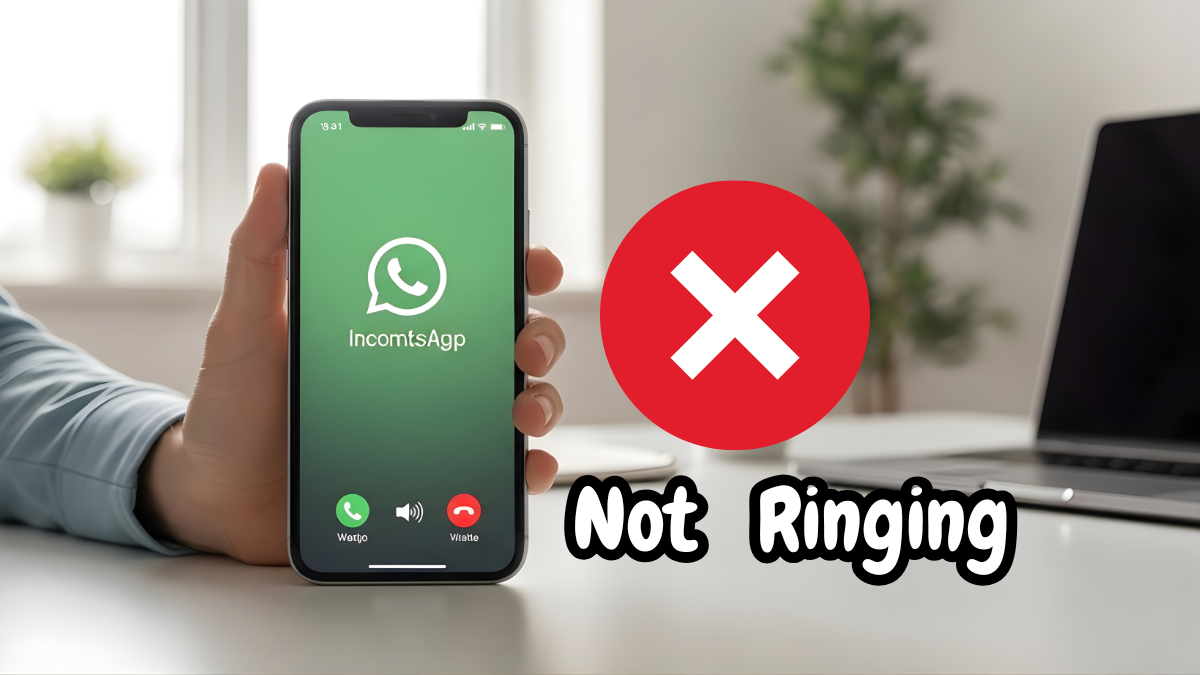

It is a common frustration for many users in the United States: you pick up your phone only to see a string of missed call alerts, yet your phone never made a sound. If you are dealing with WhatsApp calls not ringing on iPhone, you are certainly not alone. Whether you are using the latest iOS 19 or an older version, notification glitches can happen for a variety of reasons ranging from simple setting toggles to deeper software bugs.
Read more: WhatsApp Not Downloading Images on iPhone (10 proven Fixes)
For many professionals and families across the USA, WhatsApp is a primary lifeline for communication. Missing an incoming call can mean missing an important work update or a check-in from a loved one. This guide will walk you through exactly why this happens and provide clear, step-by-step solutions to ensure your WhatsApp incoming calls not ringing issue becomes a thing of the past.
Why WhatsApp Calls Are Not Ringing on iPhone
Before diving into the fixes, it helps to understand why your iPhone WhatsApp call sound issue is occurring. Usually, it isn’t just one thing, but a combination of system-level restrictions and app-specific settings.
-
Notification Settings Disabled: If the app doesn’t have permission to play sounds or show banners on the lock screen, the call will arrive silently.
-
Focus or Do Not Disturb Mode: Apple’s Focus modes are designed to keep you productive, but they often silence WhatsApp calls by default if not configured correctly.
-
WhatsApp Background Refresh Off: If the app isn’t allowed to work in the background, it may not “see” the incoming call until you manually open the app.
-
Low Data Mode: Both Wi-Fi and Cellular settings have “Low Data” options that can delay or block high-bandwidth activities like VoIP calls.
-
iOS or WhatsApp Bugs: Software updates sometimes introduce temporary glitches that interfere with how the system handles third-party call notifications.
Quick Fix Checklist
If you are in a rush, try these rapid-fire steps first:
-
Flip the Silent/Ring switch on the side of your iPhone to ensure it’s not showing orange.
-
Press the Volume Up button to ensure your ringer volume is audible.
-
Swipe down to the Control Center and ensure the “Moon” icon (Focus) is turned off.
-
Check if your iPhone is connected to Bluetooth headphones in another room.
How to Fix WhatsApp Calls Not Ringing on iPhone (Step-by-Step)
1. Enable WhatsApp Call Notifications
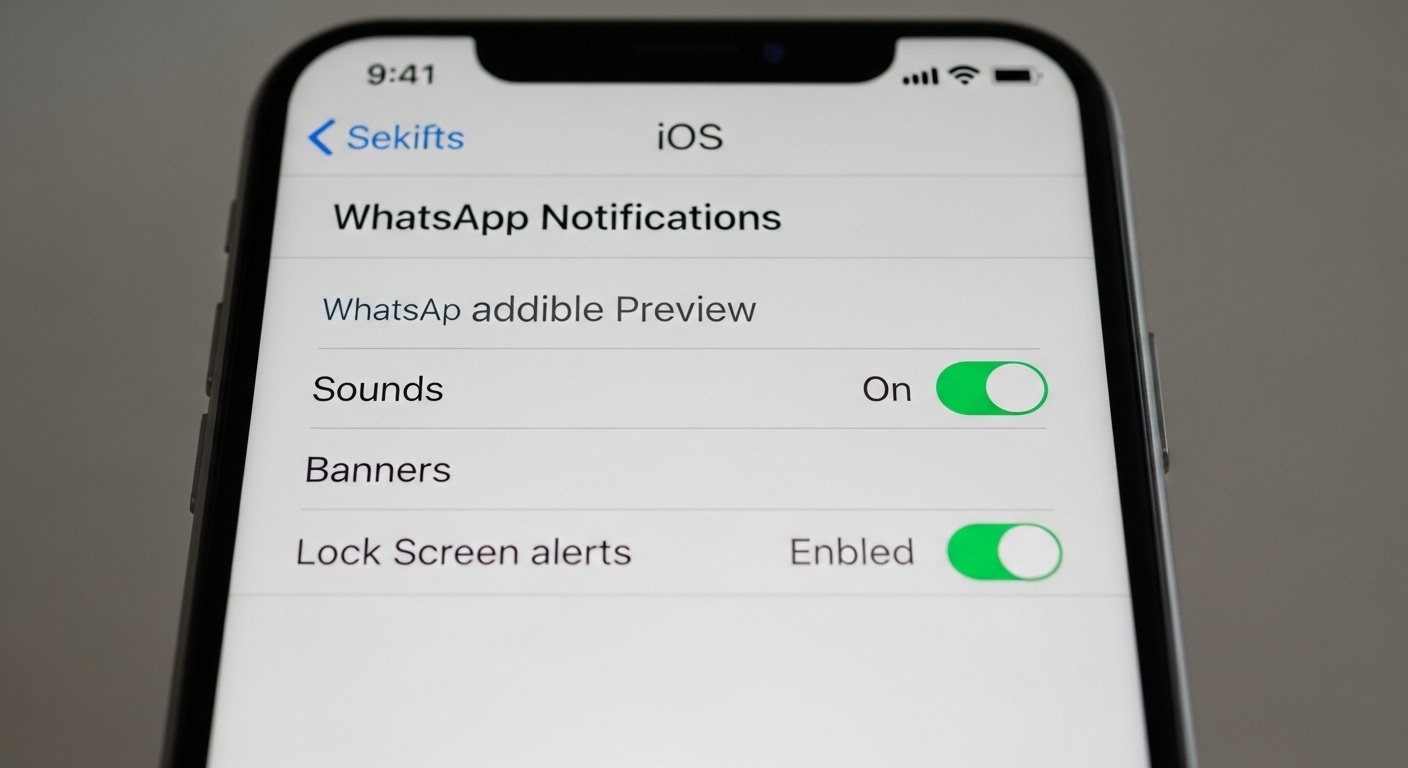
The most frequent cause for a WhatsApp call notification not working on iPhone is that the permissions were accidentally changed.
-
Open the Settings app on your iPhone.
-
Scroll down until you find WhatsApp and tap it.
-
Tap on Notifications.
-
Ensure the toggle for Allow Notifications is green.
-
Under the “Alerts” section, make sure Lock Screen, Notification Center, and Banners are all checked.
-
Crucially, ensure the Sounds toggle is turned on.
2. Turn Off Focus or Do Not Disturb
If you have a Focus mode active (like Work, Sleep, or Do Not Disturb), your iPhone will intentionally silence incoming calls.
-
Swipe down from the top-right corner of your screen to open the Control Center.
-
Look at the Focus button (it might say “Do Not Disturb” or “Work”).
-
If it is highlighted, tap it to turn it off.
-
To allow WhatsApp calls even during Focus, go to Settings > Focus, select your active mode, tap Apps, and add WhatsApp to the “Allowed” list.
3. Allow Background App Refresh
For WhatsApp to “wake up” your phone when someone calls, it needs to be able to refresh its data in the background.
-
Go to Settings.
-
Tap on General.
-
Select Background App Refresh.
-
Ensure the top setting is set to Wi-Fi & Cellular Data.
-
Scroll down the list and make sure the toggle next to WhatsApp is turned on.
4. Check WhatsApp In-App Notification Settings
Sometimes the iPhone settings are correct, but the app itself is set to “Silent” for incoming calls.
-
Open WhatsApp.
-
Tap on the Settings tab (bottom right).
-
Select Notifications.
-
Tap on Reset Notification Settings at the bottom to return to default.
-
Alternatively, ensure Show Notifications is on for both Messages and Group Notifications, and check that a “Ringtone” is actually selected under the Calls section.
5. Disable Low Data Mode
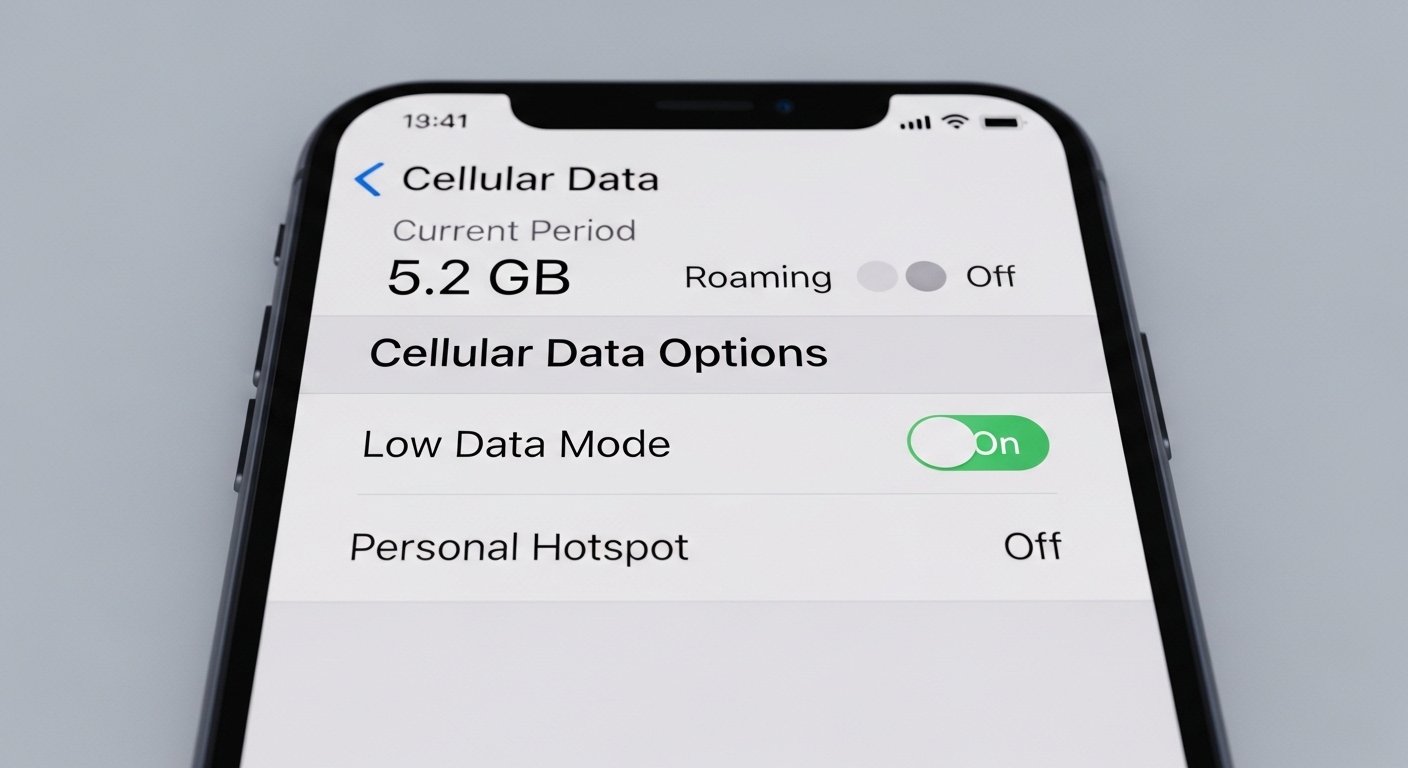
Low Data Mode reduces the amount of data your iPhone uses, which can prevent WhatsApp from processing a call signal instantly.
-
Go to Settings and tap Cellular.
-
Tap Cellular Data Options.
-
Ensure Low Data Mode is turned off.
-
If you are on Wi-Fi, go to Settings > Wi-Fi, tap the (i) next to your network, and turn off Low Data Mode there as well.
6. Update WhatsApp and iOS
Developers frequently release patches for communication bugs. If you are on an older version of the app, that might be why your WhatsApp calls are not ringing on iPhone.
-
Open the App Store.
-
Tap your Profile Icon at the top right.
-
Scroll down to see pending updates; tap Update next to WhatsApp if available.
-
Then, go to Settings > General > Software Update to ensure your iPhone is running the latest version of iOS.
7. Restart Your iPhone
A simple restart can clear out temporary system memory glitches that prevent the ringer from triggering.
-
Press and hold the Side button and either Volume button until the power-off slider appears.
-
Drag the slider and wait 30 seconds for the device to turn off completely.
-
Press and hold the Side button again until the Apple logo appears.
8. Reset Network Settings
If your internet connection is “sticking,” it might prevent the call signal from reaching your phone in time.
-
Go to Settings > General.
-
Scroll to the bottom and tap Transfer or Reset iPhone.
-
Tap Reset.
-
Select Reset Network Settings. (Note: This will delete your saved Wi-Fi passwords, but no other data).
Advanced Fixes (If Basic Steps Fail)
Reinstall WhatsApp
If none of the above worked, the app’s internal files might be corrupted.
-
Important: Before you do this, go to WhatsApp Settings > Chats > Chat Backup and tap Back Up Now to ensure you don’t lose your messages.
-
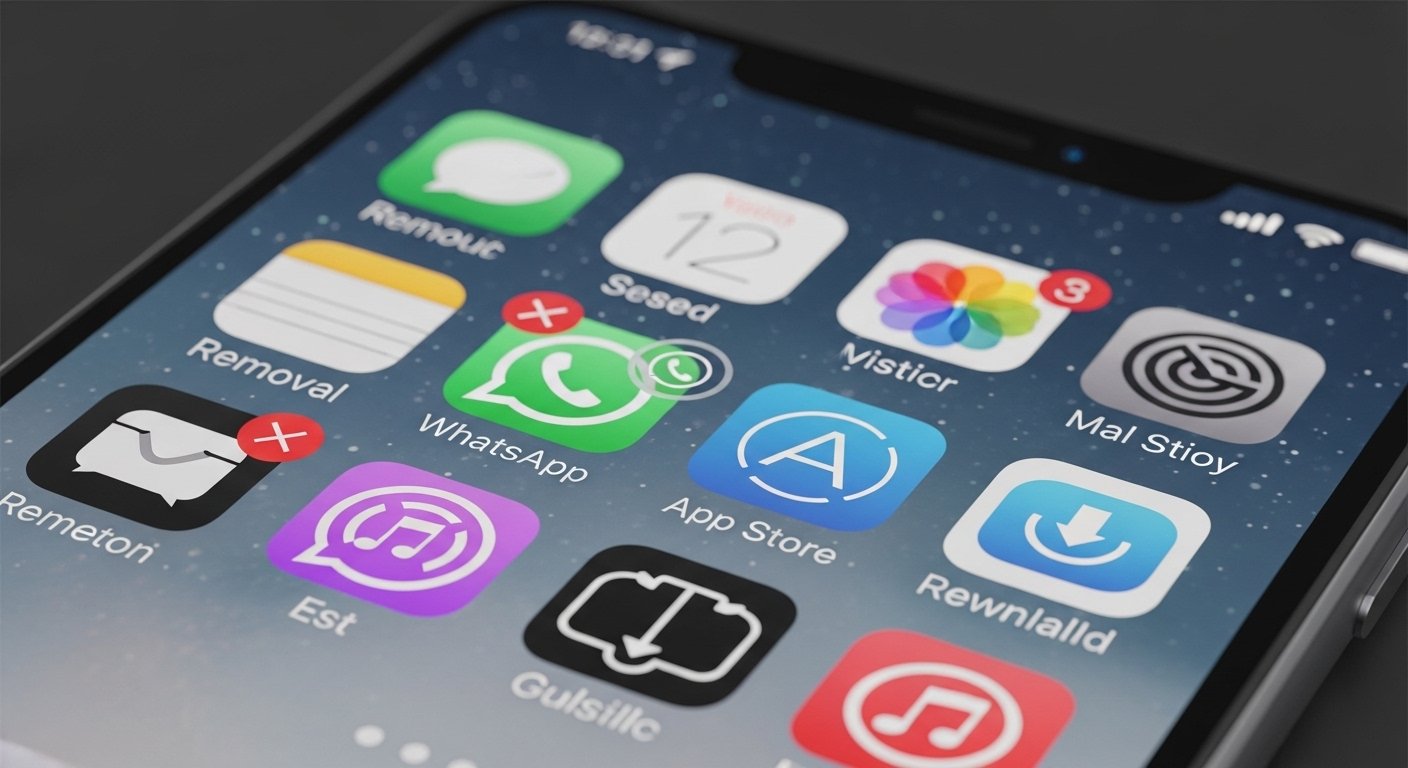
Once backed up, long-press the WhatsApp icon on your home screen and select Remove App > Delete App.
-
Go to the App Store and download a fresh copy.
Reset All Settings
This is a “nuclear” option that doesn’t delete your photos or apps but resets every system toggle (like wallpaper, Wi-Fi, and notification preferences) to factory defaults.
-
Go to Settings > General > Transfer or Reset iPhone.
-
Tap Reset > Reset All Settings.
-
Your iPhone will reboot, and you will need to re-enable your preferred notification settings.
Frequently Asked Questions (FAQs)
Why does WhatsApp ring for messages but not calls on iPhone?
This usually happens because “Call Notifications” are handled differently by iOS than “Message Notifications.” Often, it is due to Background App Refresh being disabled or the Calls ringtone in WhatsApp being set to “None.”
Does Focus Mode block WhatsApp calls?
Yes. If any Focus mode (like Do Not Disturb) is active, iOS will silence all third-party app calls unless you specifically add WhatsApp to the “Allowed Apps” list within that Focus mode’s settings.
Will reinstalling WhatsApp delete chats?
Reinstalling the app will delete your chat history unless you have performed an iCloud Backup first. Always go to Settings > Chats > Chat Backup within WhatsApp before deleting the app.
Why does WhatsApp call ring once then stop?
This often indicates a connection handoff issue. If your iPhone is switching from Wi-Fi to Cellular (or vice versa) right as the call comes in, the connection may drop. Turning off Low Data Mode can help stabilize this.
Is this issue common after iOS updates?
Yes, it is quite common. After a major iOS update, the system sometimes resets app permissions or changes how background processes are managed. Checking your notification settings after an update is always recommended.
Final Conclusion
Dealing with WhatsApp calls not ringing on iPhone is frustrating, but it is almost always a software or settings issue rather than a hardware problem. By methodically checking your notification permissions, disabling Focus modes, and ensuring Background App Refresh is active, you can restore your phone’s ability to alert you to incoming calls.
Remember to test each fix by asking a friend to call you after you’ve made a change. Start with the simplest steps first, like checking your silent switch and volume, before moving on to more advanced resets.