
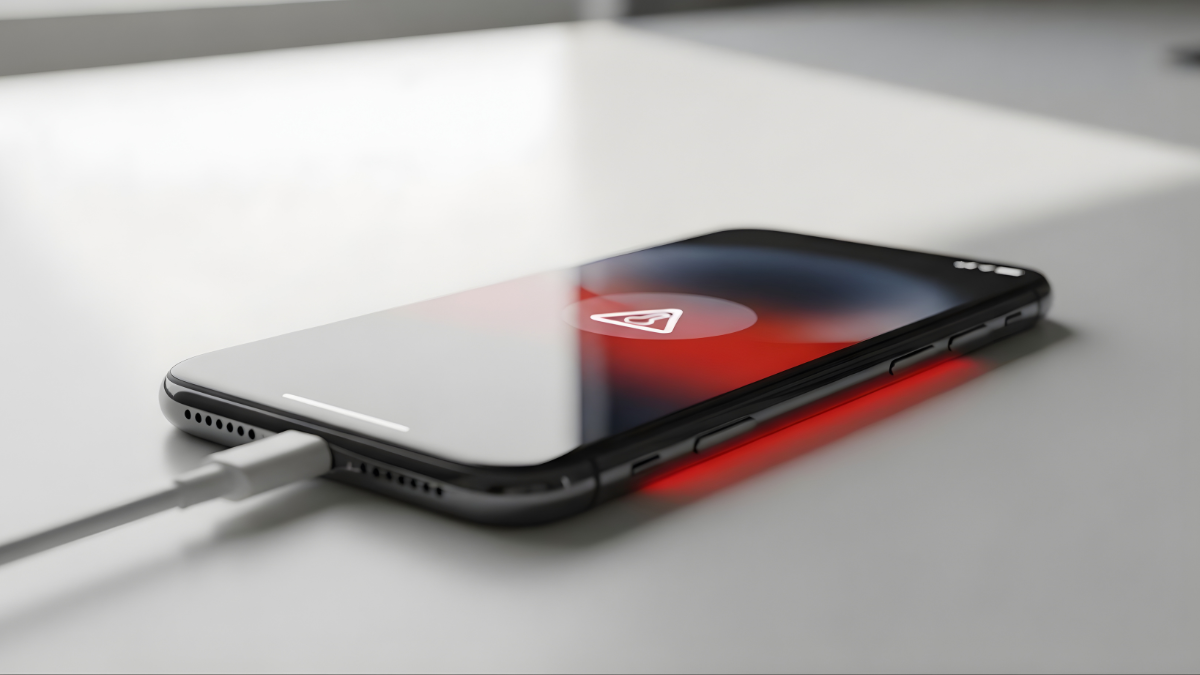

It is a situation many of us have faced: you plug your iPhone in for a quick power boost, and a few minutes later, the back of the device feels like a heating pad. You might even see the dreaded “iPhone needs to cool down before you can use it” warning on your screen.
While a slight temperature increase is normal during a charge, an iPhone overheating while charging can be a cause for concern. Not only is it uncomfortable to hold, but excessive heat is the primary enemy of lithium-ion batteries, potentially leading to permanent capacity loss or even hardware damage.
Read more: iPhone Not Charging but Shows Charging (9 Proven Fixes)
Read more: iPhone Battery Draining Fast After iOS Update (10 Proven Fixes)
In this guide, we will dive deep into why is my iPhone overheating, distinguish between “normal warmth” and “dangerous heat,” and provide a comprehensive, step-by-step roadmap to cool your device down. Whether you are dealing with a faulty cable or an iPhone overheating after iOS update, these solutions will help you protect your investment and keep your phone running smoothly.
Why is my iPhone overheating while charging? (Featured Snippet)
Your iPhone generates heat while charging due to the chemical process of moving energy into the battery. This is intensified by fast-charging adapters, using the phone during a charge, or thick cases that trap heat. Software bugs or high ambient temperatures can also cause your iPhone to get hot while charging.
Why Your iPhone Gets Hot While Charging
Understanding the root cause is the first step toward a fix for iPhone overheating issues. Here are the most common reasons your device might be running hot:
1. Fast Charging Technology
Modern iPhones support fast charging using a 20W or higher power adapter. This pushes energy into the battery at a much higher rate than old 5W “cube” chargers, which naturally generates more thermal energy.
2. Faulty or Non-Certified Cables
Using a cheap, “knock-off” charging cable from a gas station can lead to inconsistent voltage. Without MFi (Made for iPhone) certification, the cable may not communicate properly with your iPhone’s power management chip.
3. Intensive Background Activity
Sometimes the heat isn’t from the battery alone. If your iPhone is indexing files, downloading photos to iCloud, or updating apps in the background while plugged in, the processor and battery work double-time.
4. iPhone Overheating After iOS Update
It is very common for an iPhone to be hot when charging right after a major software update. For 24–48 hours after an update, the system works hard in the background to re-index your spotlight search, photos, and system files.
5. Ambient Temperature and Sunlight
If you are charging your phone on a car dashboard in the sun or in a room without air conditioning, the external environment prevents the phone from dissipating heat naturally.
6. Wireless Charging Efficiency
Wireless (Qi or MagSafe) charging is less efficient than wired charging. Energy is lost as heat through induction, which is why your iPhone charging heating problem might seem worse when using a MagSafe puck.
7. Hardware or Battery Aging
As lithium-ion batteries age, their internal resistance increases. An older battery has to work harder to hold a charge, which can lead to significant heat buildup compared to a brand-new device.
How to Fix iPhone Overheating While Charging
If you are looking for an iPhone overheating fix step by step, follow these 10 proven methods to bring the temperature down.
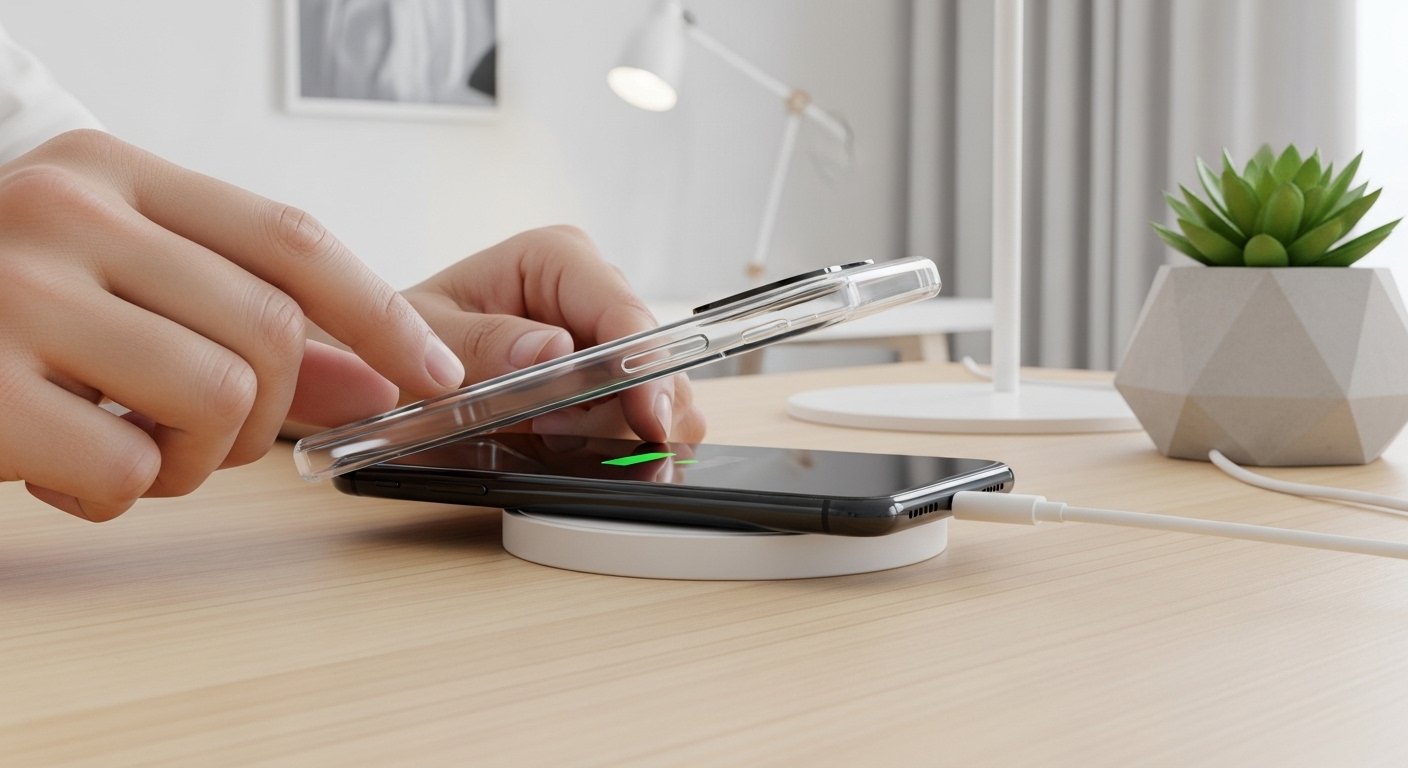
1. Remove Your Phone Case
Why it works: Many decorative or “rugged” cases are made of thick plastic or rubber that acts as an insulator, trapping heat inside the phone’s chassis.
-
The Fix: Simply pop the case off as soon as you plug the phone in. This allows the glass and metal back to radiate heat into the air.
2. Stop Using the Phone While It Charges
Why it works: This is known as “parasitic loading.” When you play high-graphics games or stream HD video while charging, you are simultaneously draining and filling the battery, which generates massive heat.
-
The Fix: Set the phone down and let it charge in peace. If you must use it, stick to light tasks like checking a quick text.
3. Use an Apple-Certified (MFi) Charger
Why it works: Apple-certified accessories have built-in regulators that prevent overcharging and voltage spikes.
-
The Fix: Check your cable for the “Made for iPhone” logo. If you suspect a faulty cable, swap it for an official Apple USB-C to Lightning or USB-C to USB-C cable.
4. Close Power-Hungry Background Apps
Why it works: Apps like Maps, Facebook, or YouTube can continue to run processes even when you aren’t looking at them.
-
The Check: Go to Settings > Battery to see which apps have high “Background Activity.”
-
The Fix: Swipe up from the bottom of your screen and close out any apps you aren’t currently using.
5. Toggle Off “Optimized Battery Charging” Temporarily
Why it works: While this feature is great for long-term battery health, it sometimes causes the phone to “hold” a charge at 80% while running background tasks, which can keep the phone warm for longer.
-
The Fix: Go to Settings > Battery > Battery Health & Charging and toggle off “Optimized Battery Charging” to see if the heat dissipates during a full cycle.
6. Update to the Latest iOS
Why it works: Apple frequently releases “point updates” (like iOS 17.x.x) specifically to fix bugs that cause CPU spikes and overheating.
-
The Fix: Go to Settings > General > Software Update. If an update is available, download and install it.
7. Reset Network Settings
Why it works: If your phone is struggling to find a Wi-Fi or Cellular signal, the modem works overtime, generating heat near the top of the device.
-
The Fix: Go to Settings > General > Transfer or Reset iPhone > Reset > Reset Network Settings. Note: This will clear your saved Wi-Fi passwords.
8. Enable Low Power Mode
Why it works: Low Power Mode reduces background activity, lowers screen brightness, and limits processor performance.
-
The Fix: Go to Settings > Battery and toggle on Low Power Mode. This reduces the total energy the phone uses while it’s trying to juice up.
9. Switch from Wireless to Wired Charging
Why it works: As mentioned, wireless charging is inherently “lossy” and creates more heat than a direct cable connection.
-
The Fix: If your phone is burning up on a MagSafe charger, switch to a standard lightning or USB-C cable until the phone cools down.
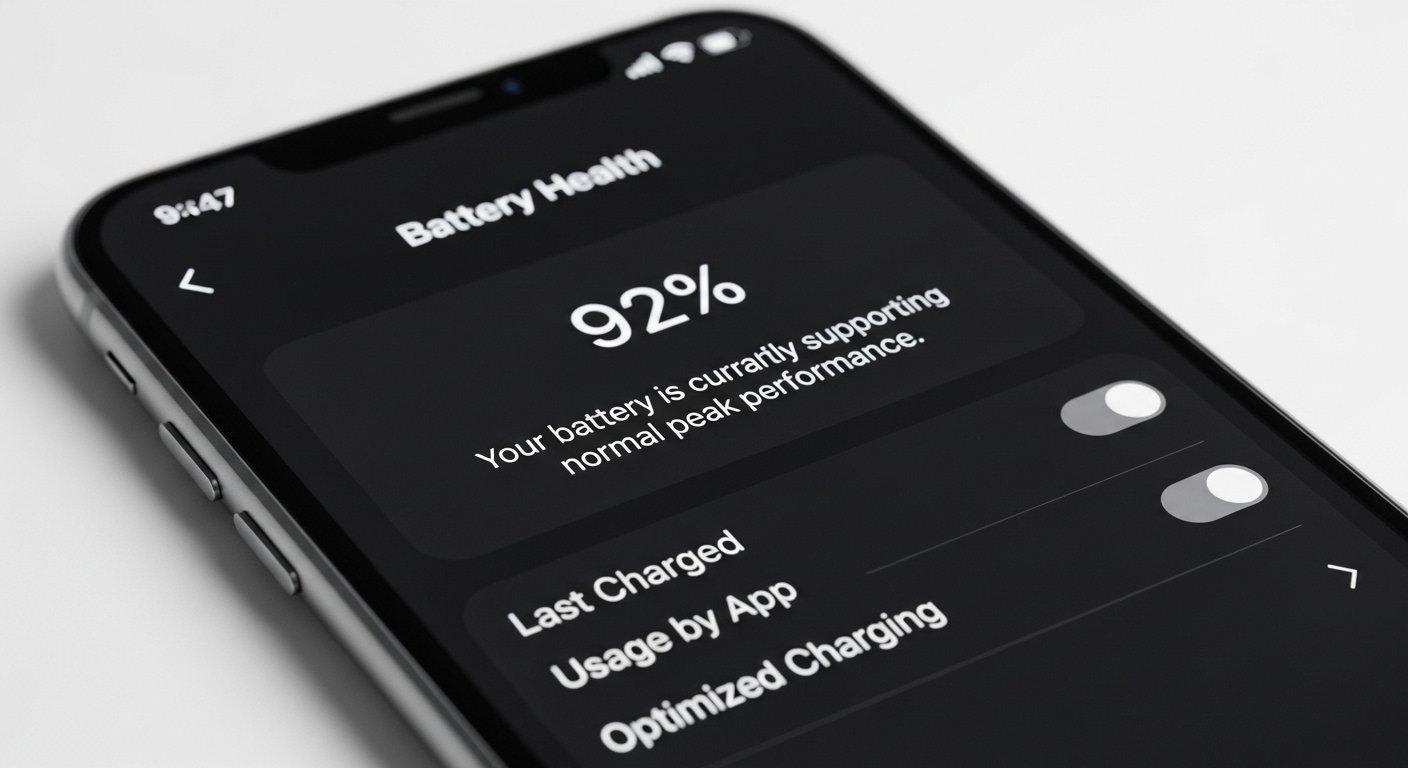
10. Check Your Battery Health
Why it works: If your maximum capacity is below 80%, your battery may be “failing” and reacting poorly to the charging current.
-
The Fix: Go to Settings > Battery > Battery Health. If it says “Service,” it’s time to head to the Apple Store for a replacement.
Is iPhone Overheating Dangerous? (USA User Guide)
Living in the United States, we experience a wide range of climates—from the humidity of Florida to the desert heat of Arizona. Understanding when heat is “normal” is key to your peace of mind.
When it is Normal
-
The phone feels warm (but not painful) during the first 30 minutes of a fast charge.
-
The phone gets warm while restoring a backup from iCloud.
-
The phone gets warm while using GPS in a car.
When it is Serious
If your iPhone is too hot to touch, or if you see a permanent black screen with a temperature warning, the device has reached its thermal limit.
When to Visit the Apple Store
If you have tried all the fixes above and your iPhone gets hot while charging every single time, you should utilize your consumer rights:
-
Warranty: If your iPhone is less than a year old, it is covered by the Apple Limited Warranty. If the battery or logic board is defective, the repair may be free.
-
AppleCare+: If you have AppleCare+, battery replacements are often $0 if the health is below 80%.
-
Genius Bar: You can book an appointment via the “Apple Support” app. In the USA, many Best Buy locations are also Apple Authorized Service Providers.
Frequently Asked Questions
Is it normal for my iPhone to get warm while charging?
Yes. It is perfectly normal for an iPhone to feel slightly warm while charging, especially if you are using a fast charger or if the battery was very low (below 20%) when you started.
Can overheating damage my battery?
Yes. Chronic overheating can lead to “thermal degradation.” This permanently reduces the amount of charge your battery can hold, meaning you’ll have to charge it more often throughout the day.
Does fast charging cause heat?
Yes. Fast charging (20W adapters and above) uses higher voltage and current. The increased energy flow creates more heat as a byproduct compared to the old, slow 5W chargers.
Should I stop charging if it gets hot?
If the phone is uncomfortably hot to the touch or displays a warning message, you should unplug it immediately, remove the case, and let it cool in a shaded area.
How do I cool down my iPhone safely?
The best way to cool an iPhone is to unplug it, turn it off, and place it in front of a fan. Never put your iPhone in the freezer, as the rapid temperature change can cause condensation to form inside the device, leading to water damage.
Internal Linking Suggestions
-
iPhone battery draining fast – “Is your battery dying too quickly after it cools down? Check out our guide on battery drain.”
-
iPhone not charging – “If your phone is hot but the percentage isn’t going up, you might have a port issue.”
Conclusion
An iPhone overheating while charging is usually a software or environmental issue rather than a hardware catastrophe. By simply removing your case, using an Apple-certified charger, and avoiding gaming while charging, you can solve 90% of heating problems.
If your iPhone continues to run hot despite these fixes, or if your Battery Health is significantly degraded, don’t wait. Visit an Apple Store or an authorized service provider to ensure your device remains safe and functional.