
There is nothing more frustrating than being in the middle of an important email or a high-stakes mobile game only to have the screen go black and return you to the home screen. If you are dealing with Android apps crashing repeatedly, you are certainly not alone. This is one of the most common issues reported by smartphone users in the United States, affecting everything from high-end Samsung Galaxy devices to budget-friendly Pixels.
Read more: Android Phone Slow After Update (12 Proven Fixes)
While it feels like your phone might be broken, the good news is that “app instability” is almost always a software-related hiccup rather than a hardware failure. Whether it is a single stubborn app or a system-wide problem where multiple programs keep closing, most fixes take less than five minutes of your time. This guide will walk you through the most effective, battle-tested solutions to get your device back to peak performance. From clearing hidden junk files to managing system updates, here is everything you need to know to stop the crashes for good.
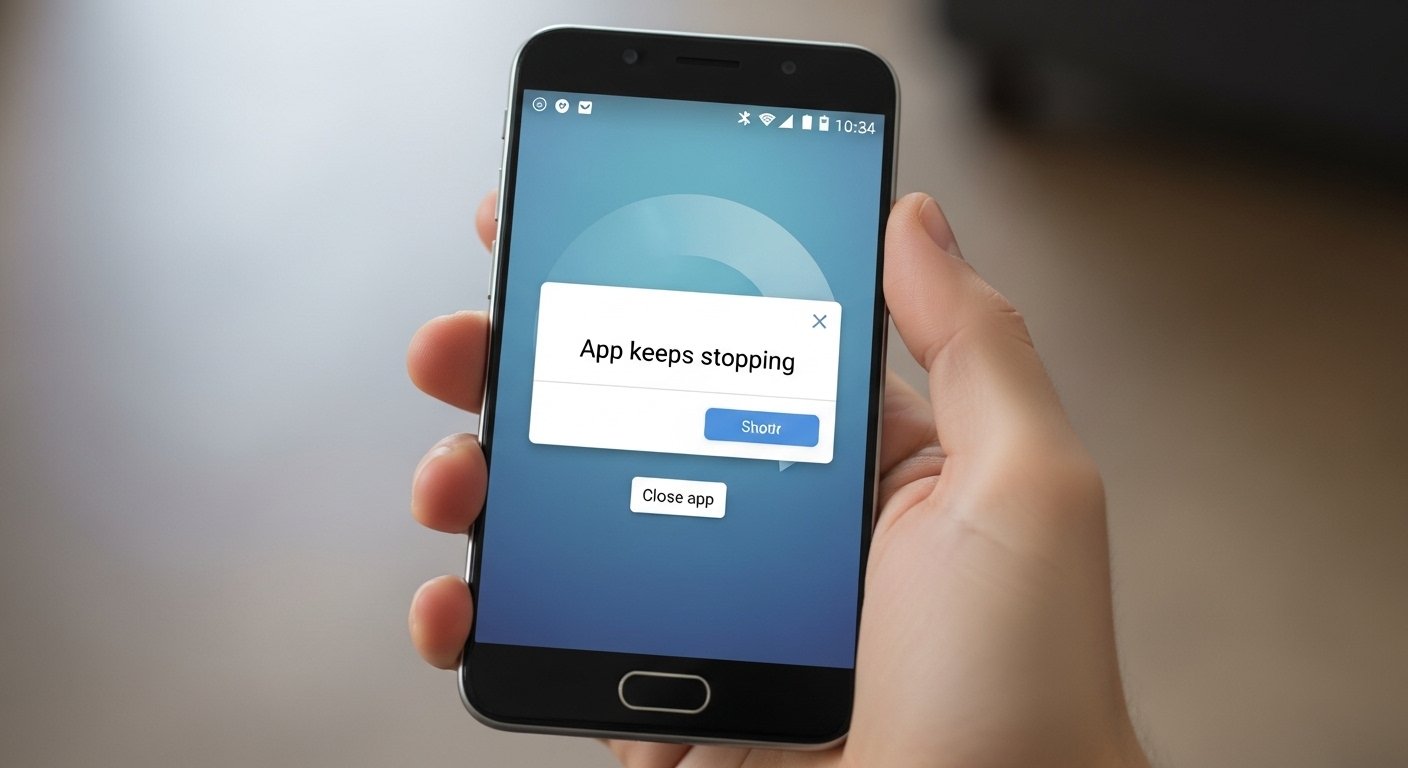
Why Android Apps Are Crashing Repeatedly
Understanding why your phone is acting up is the first step toward a permanent fix. In most cases, apps crash because they encounter a “conflict”—a situation where the software tries to do something the hardware or operating system won’t allow. Here are the most common culprits:
-
Corrupted App Cache or Data: Apps store temporary files (cache) to speed up loading. If one of these files becomes “corrupted” or garbled, the app may fail to launch.
-
Outdated Android System: If your phone’s operating system is old, it may lack the necessary “instructions” to run the latest versions of modern apps.
-
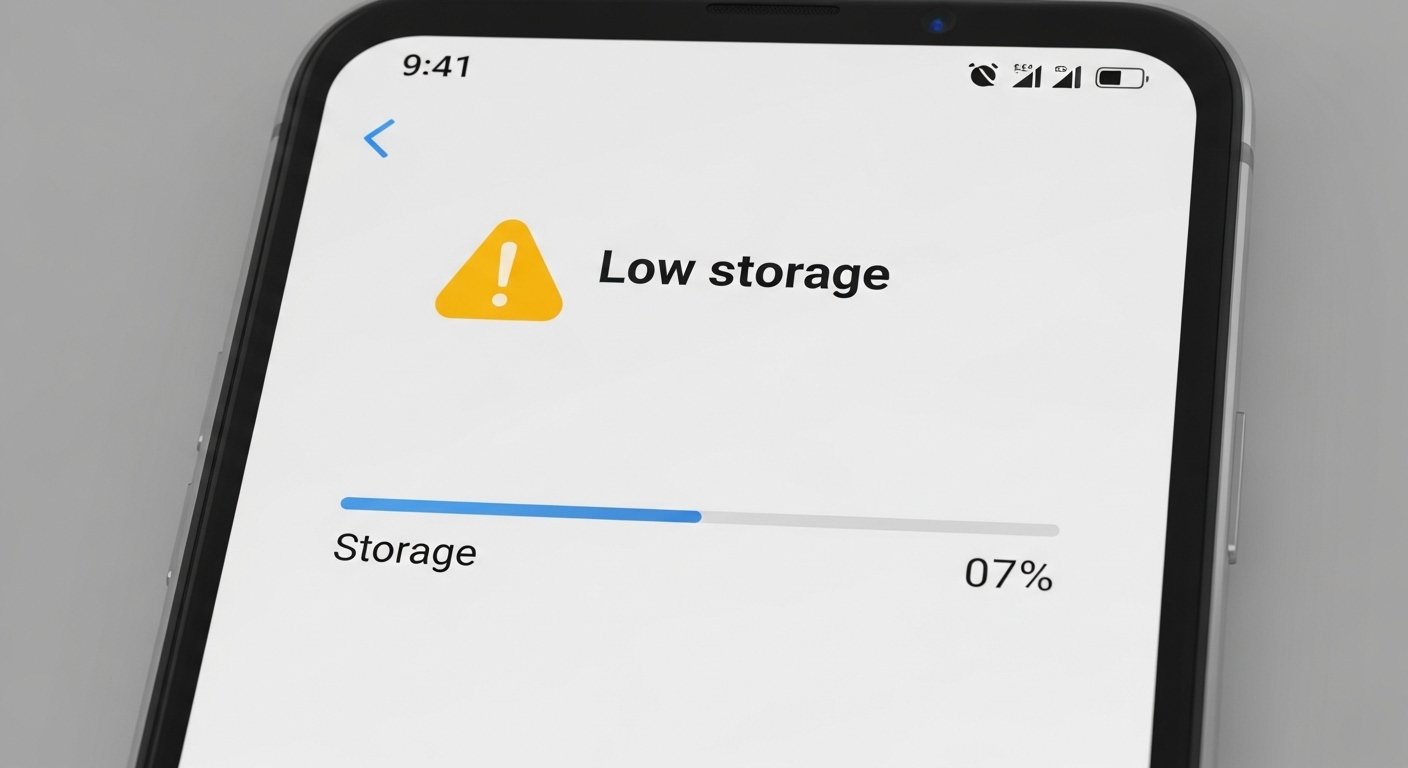
Low Storage Space: Android needs a “buffer” of free space to move data around. If your internal storage is 95% full or higher, apps will frequently stutter and close.
-
Insufficient RAM: If you have too many heavy apps running in the background, your phone may run out of active memory (RAM) and force-close apps to protect the system.
-
Android System WebView Issues: This is a core component that allows apps to display web content. If this specific system tool is buggy, it can cause dozens of different apps to crash simultaneously.
-
Battery Optimization Restrictions: Sometimes, Android’s “Power Saving” mode is too aggressive, “killing” apps in the background to save battery life.
How to Fix Android Apps Crashing Repeatedly (Step-by-Step)
Follow these steps in order. We recommend starting with the simplest fixes first before moving on to more advanced troubleshooting.
1. Restart Your Android Phone
What it does: A restart flushes the system’s temporary memory (RAM) and kills all background processes that might be conflicting with your apps. When to try it: This should always be your very first step.
-
Press and hold the Power button on the side of your phone.
-
Select Restart from the menu.
-
Wait for the phone to fully reboot and try opening the app again.
2. Clear App Cache and Data
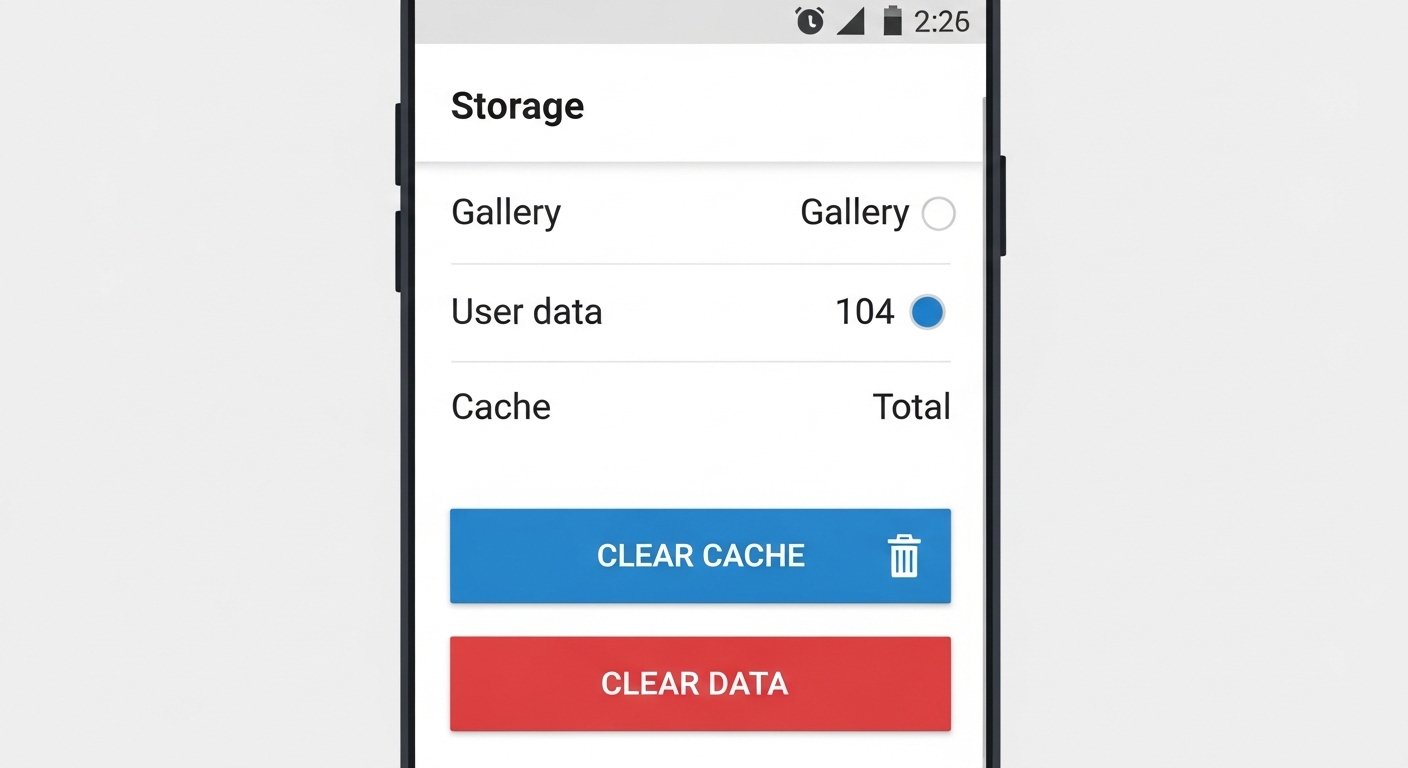
What it does: This deletes the temporary files for a specific app. Clearing “Cache” is safe; clearing “Data” will reset the app to its factory state (you will have to log in again). When to try it: Try this if only one or two specific apps are crashing.
-
Open Settings and tap on Apps (or See all apps).
-
Find the app that is crashing and tap on it.
-
Tap Storage & cache.
-
Tap Clear Cache.
-
If the app still crashes, return here and tap Clear Storage or Clear Data.
3. Update the Problematic App
What it does: Developers frequently release “patches” to fix known bugs. If your app is crashing, it might be a known issue that has already been fixed in a newer version. When to try it: If you haven’t updated your apps in over a week.
-
Open the Google Play Store.
-
Tap your Profile Icon in the top right corner.
-
Select Manage apps & device.
-
Check for Updates available and tap Update all.
4. Update Android System Software
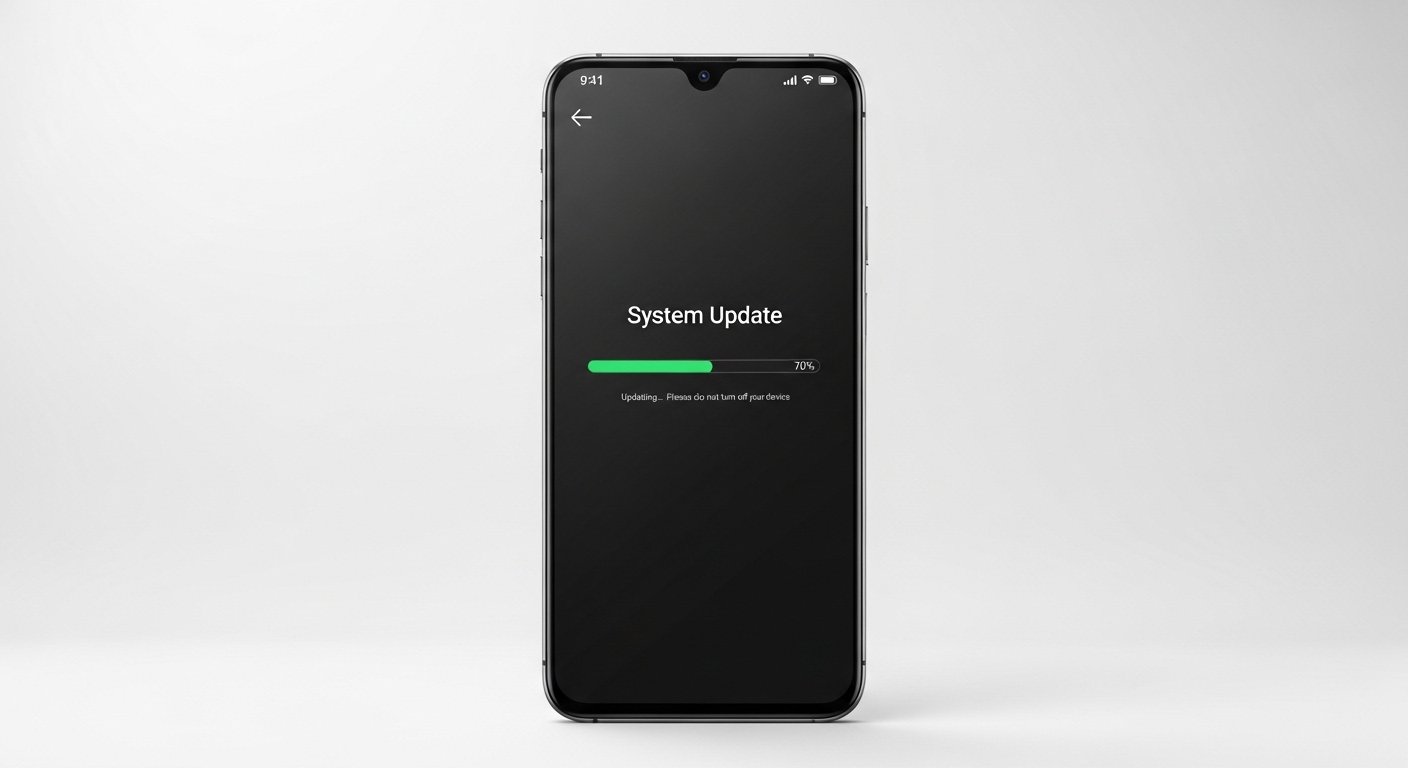
What it does: Ensures your phone has the latest security patches and system stability improvements. When to try it: If multiple, unrelated apps are crashing at the same time.
-
Go to Settings.
-
Scroll down and tap System or Software Update.
-
Tap Check for updates.
-
If an update is available, download and install it (make sure you are on Wi-Fi).
5. Free Up Storage Space
What it does: Gives the Android OS room to “breathe” and process data. When to try it: If you see a “Storage space running out” notification.
-
Go to Settings > Storage.
-
Identify what is taking up space (usually Photos, Videos, or Downloads).
-
Delete unused apps or move large video files to a cloud service like Google Photos.
-
Pro Tip: Aim to keep at least 10% of your storage free at all times.
6. Disable Battery Optimization for the App
What it does: Prevents the phone from “sleeping” the app while you are using it. When to try it: If apps crash specifically when you switch between them or let the screen go dark.
-
Open Settings > Apps.
-
Select the crashing app.
-
Tap Battery.
-
Change the setting to Unrestricted.
7. Reset App Preferences
What it does: This resets all app permissions, disabled apps, and notification settings to default without deleting your personal data. When to try it: If you suspect a setting change caused the instability.
-
Go to Settings > System (or Apps).
-
Tap Reset options.
-
Select Reset app preferences and confirm.
8. Factory Reset (Last Resort)
What it does: Wipes your entire phone and reinstalls a fresh version of Android. When to try it: Only if the phone is unusable and no other steps have worked.
Warning: This will erase all photos, messages, and contacts. Back up your data to the cloud before proceeding.
-
Go to Settings > System > Reset options.
-
Tap Erase all data (factory reset).
-
Follow the on-screen prompts to confirm.
Android Apps Crashing After Update – What to Do
Sometimes, an update actually causes the problem. This usually happens if the update was interrupted or if there is a conflict between the new app version and an old system component called Android System WebView.
If your Android apps are crashing after update, follow these specific steps:
-
Update WebView and Chrome: Many apps rely on these two components. Go to the Google Play Store, search for “Android System WebView” and “Google Chrome,” and ensure both are fully updated.
-
Uninstall Updates for WebView: If the latest version is the problem, you can “roll back.” Go to Settings > Apps > Android System WebView > tap the three dots in the corner and select Uninstall updates.
-
Wipe Cache Partition: This is a more advanced step that clears the system-level cache. You typically have to turn off your phone and hold the Volume Up + Power buttons to enter “Recovery Mode” to find this option.
When to Contact App Support or Service Center
While 99% of app crashes are software-based, there are rare occasions where the problem is deeper. You should consider professional help if:
-
The phone gets extremely hot immediately before an app crashes (this could be a failing battery or processor).
-
The screen flickers or shows graphical glitches before the crash.
-
The crashes happen across every single app, including the phone dialer and settings, even after a factory reset.
If your device is still under warranty (standard 1-year manufacturer warranty in the USA), contact the manufacturer (Samsung, Google, Motorola, etc.) or your carrier (Verizon, AT&T, T-Mobile) for a diagnostic check.
Frequently Asked Questions (FAQs)
Why do Android apps keep crashing on my phone?
The most common reasons are outdated software, corrupted cache files, or a lack of internal storage. If it’s happening to multiple apps, it is likely a system-level issue like a buggy “Android System WebView” update.
How do I stop apps from crashing on Android?
The most effective way is to regularly update both your apps and your Android OS. Additionally, clearing the cache of frequently used apps and restarting your phone once a week can prevent crashes before they start.
Does low storage cause apps to crash?
Yes. Android apps require a certain amount of free space to create temporary “working files.” If your phone has less than 1–2 GB of free space, apps may fail to open or close unexpectedly.
Should I reset my phone if apps keep crashing?
A Factory Reset should be your last resort. Try restarting the phone, clearing the app cache, and updating your software first. A reset is effective but time-consuming because it erases all your data.
Why do apps crash only on WiFi or mobile data?
This usually indicates a “sync” error. If an app tries to download data and the connection is unstable, it may “time out” and crash. Try toggling Airplane Mode on and off to reset your connection.
Conclusion
Dealing with Android apps crashing repeatedly is a major inconvenience, but it is rarely a sign of a “dead” phone. In the vast majority of cases, the solution is as simple as clearing out old cache files or ensuring your system software is up to date. By following the step-by-step troubleshooting guide above, you can resolve the issue and return to using your device without interruption.
Start with a simple restart, keep an eye on your storage space, and ensure your core system components like WebView are updated. If you follow these preventative habits, your Android experience will remain smooth, fast, and crash-free.