
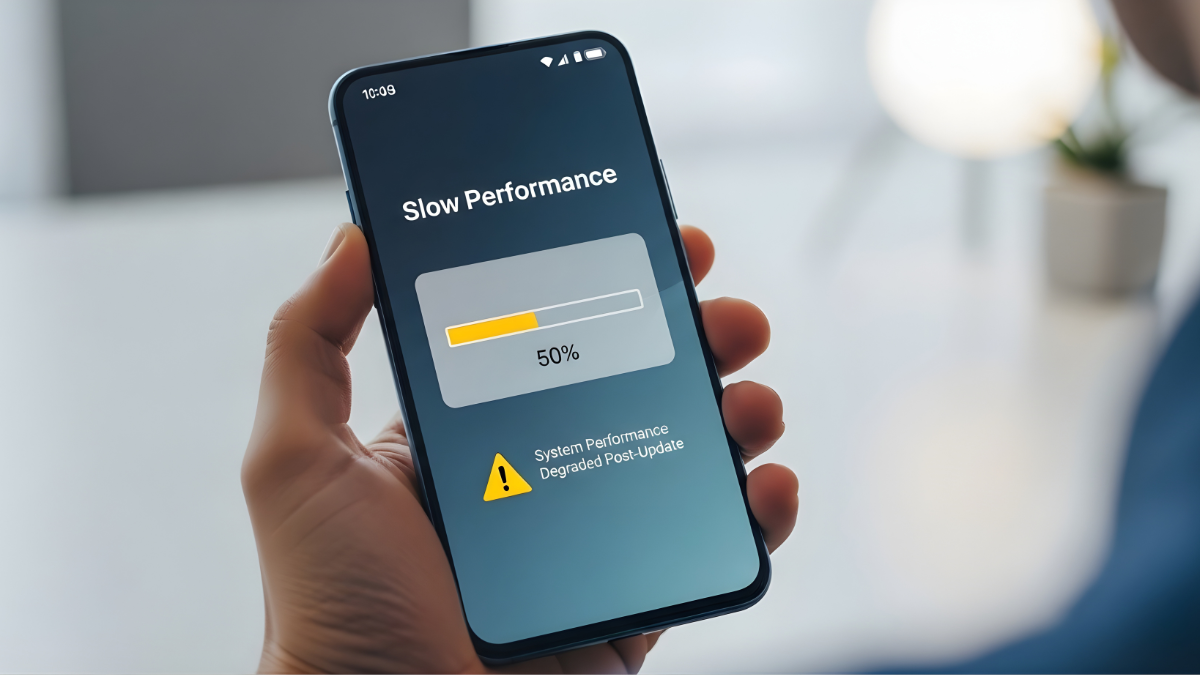
Has your Android phone suddenly started lagging, freezing, or taking forever to open apps after a recent update? You’re not alone. Many users search for solutions when their Android phone slow after update, especially after major system upgrades from brands like Samsung, Google Pixel, Motorola, or OnePlus.
Android updates are designed to improve security, add features, and fix bugs. However, they can sometimes cause performance issues. New software may not fully optimize older apps, background processes may increase, or cached data can conflict with the updated system. The result? A phone that feels slower than before.
The good news is that most android performance issues after update can be fixed without replacing your device. This guide walks you through proven, beginner-friendly steps to speed up your Android phone and restore smooth performance.
WHY ANDROID PHONE BECOMES SLOW AFTER UPDATE
When an Android update installs, it changes how your phone’s system works behind the scenes. While this is normal, several issues can cause slowdowns.

Common reasons include:
-
Background optimization processes: After an update, Android re-optimizes apps, which can temporarily slow performance.
-
App incompatibility: Some apps may not be fully updated to work with the new Android version.
-
Cache conflicts: Old cached files may clash with the updated system.
-
Low storage space: Updates often require extra storage, leaving less room for smooth operation.
-
Software bugs: Even stable updates can have minor bugs that affect speed.
-
Increased battery management features: New power-saving features may limit performance.
These factors together often lead to android lagging after update or even phone freezing after android update.
TOP 12 PROVEN FIXES
1. Restart Your Android Phone
A simple restart can resolve many temporary performance issues.
Steps:
-
Press and hold the Power button.
-
Tap Restart or Reboot.
-
Wait for the phone to fully turn back on.
Restarting clears temporary memory and helps the system stabilize after an update.
2. Give the Update Time to Settle
After a software update, Android may run background tasks for a day or two.
What to do:
-
Use your phone normally for 24–48 hours.
-
Keep it plugged in during charging.
-
Avoid force-closing system apps.
If your android phone slow after software update improves after a day, no further action may be needed.
3. Clear App Cache (Not Data)
Cached files can become outdated after updates.
Steps:
-
Go to Settings > Apps.
-
Select an app (start with frequently used ones).
-
Tap Storage & cache.
-
Tap Clear cache.
Repeat for apps like Chrome, Facebook, Instagram, and YouTube. 
4. Update All Apps
Outdated apps often cause android update problems.
Steps:
-
Open Google Play Store.
-
Tap your profile icon.
-
Select Manage apps & device.
-
Tap Update all.
Updated apps are optimized for the latest Android version.
5. Check Available Storage Space
Low storage is a major cause of android performance issues after update.
Steps:
-
Go to Settings > Storage.
-
Ensure at least 5–10 GB free space.
-
Delete unused apps, videos, or downloads.
You can also use Google Files to clean junk safely.
6. Disable or Remove Unused Apps
Unused apps still run background services.
Steps:
-
Go to Settings > Apps.
-
Select an unused app.
-
Tap Disable or Uninstall.
Fewer apps mean better performance.
7. Reduce Animations and Visual Effects
Animations look nice but use processing power.
Steps:
-
Enable Developer options
-
Go to Settings > About phone
-
Tap Build number 7 times.
-
-
Go to Settings > Developer options.
-
Set:
-
Window animation scale: 0.5x
-
Transition animation scale: 0.5x
-
Animator duration scale: 0.5x
-
This often makes phones feel instantly faster.

8. Check Battery Optimization Settings
Aggressive battery saving can cause lag.
Steps:
-
Go to Settings > Battery.
-
Turn off extreme power-saving modes.
-
Allow important apps to run unrestricted if needed.
Balanced settings help avoid android lagging after update.
9. Scan for Problematic Apps
Some apps misbehave after updates.
What to do:
-
Restart phone in Safe Mode.
-
Use the phone for a few minutes.
-
If performance improves, uninstall recently added apps.
Safe Mode helps identify the cause of phone freezing after android update.
10. Install Minor Software Patches
Manufacturers often release fixes after major updates.
Steps:
-
Go to Settings > Software update.
-
Check for new updates.
-
Install any available patches.
These updates often resolve bugs affecting performance.
11. Reset App Preferences
This restores default app settings without deleting data.
Steps:
-
Go to Settings > Apps.
-
Tap the three-dot menu.
-
Select Reset app preferences.
This can fix system conflicts after updates.
12. Factory Reset (Last Resort)

If nothing works, a reset may help.
Warning: This erases all data.
Steps:
-
Backup data to Google account.
-
Go to Settings > System > Reset options.
-
Tap Erase all data (factory reset).
This often resolves severe android update problems.
TIPS TO PREVENT ANDROID PHONE SLOWNESS IN THE FUTURE
-
Keep at least 20% storage free
-
Update apps regularly
-
Avoid installing unnecessary apps
-
Restart phone weekly
-
Avoid task-killer apps
-
Use trusted app sources only
These habits reduce the chance of your android phone slow after update in the future.
WHEN TO CONTACT SUPPORT OR CONSIDER RESET
You should contact support if:
-
Phone overheats constantly
-
System apps crash repeatedly
-
Performance doesn’t improve after all fixes
-
Phone becomes unusable
Samsung, Google, and Motorola support can diagnose deeper issues. Consider factory reset only after backing up your data.

FAQs
Why is my Android phone slow after update?
Updates can cause background optimization, app conflicts, or cache issues, leading to temporary slowness.
How long does Android lag after update last?
Usually 24–72 hours. If it lasts longer, manual fixes are recommended.
Does factory reset fix android performance issues after update?
Yes, in most severe cases, but it should be the last option.
Can updates slow down older Android phones?
Yes, newer software can be demanding on older hardware.
Is android lagging after update a bug?
Sometimes. Manufacturers often release patches to fix it.
CONCLUSION
Experiencing an android phone slow after update can be frustrating, but it’s usually fixable. From simple restarts and cache clearing to adjusting settings and updating apps, most issues can be resolved at home. Try the steps in this guide one by one, and your Android phone should feel faster and smoother again.
Bookmark or share this guide so you’re ready the next time an update causes performance issues.