
It is a frustrating yet common experience: you open your app to check the latest updates, only to find your Instagram feed not loading. Instead of vibrant photos and reels, you are greeted by a blank screen, a spinning loading circle, or the dreaded “couldn’t refresh feed” notification.
When your Instagram feed is not loading, it can feel like you’re cut off from your social circle. This issue often stems from a variety of sources, ranging from a simple connection hiccup to a widespread Instagram server outage. Whether you are dealing with a blank feed issue or an Instagram feed not refreshing, the good news is that most of these problems are easily fixable on your end.
Read more: iPhone Overheating While Charging? 10 Easy Fixes
Read more: WhatsApp Calls Not Ringing on iPhone (10 Proven Fixes)
Read more: Android Apps Crashing Repeatedly? 10 Easy Fixes
This guide provides a comprehensive, step-by-step walkthrough to help you fix the Instagram feed problem quickly. We will cover everything from basic restarts to advanced settings for both iOS and Android users to ensure your app gets back to normal today.
Why Is My Instagram Feed Not Loading?
Before diving into the fixes, it helps to understand why Instagram keeps loading without showing content. Usually, the culprit falls into one of these categories:
-
Poor Internet Connection: This is the most frequent cause. If your signal is weak or your WiFi is toggling, the app cannot pull new data.
-
Instagram Server Outage: Sometimes the problem isn’t your phone; it’s Instagram’s own servers. If Instagram is not working today for everyone, you’ll have to wait it out.
-
App Cache Corruption: Over time, the temporary files stored by the app can become “clogged,” leading to performance glitches.
-
Outdated App Version: Using an old version of the app can cause compatibility issues with Instagram’s latest API.
-
Account Glitches: Occasionally, a bug tied to your specific login session prevents the feed from updating.
-
VPN Interference: If you use a VPN, Instagram may flag the IP address or the connection may be too slow to load media.
How to Fix Instagram Feed Not Loading: 12 Proven Solutions
If you are tired of staring at a blank Instagram feed, follow these steps in order. We have ranked them from the easiest “quick fixes” to more involved technical steps.
1. Check Instagram Server Status
Before changing any settings on your phone, check if the service is down for everyone. If the servers are offline, no amount of troubleshooting will work.
-
Visit a site like Downdetector and search for Instagram.
-
Check the official Instagram Communications account on X (formerly Twitter).
-
If there is a massive spike in reports, Instagram is not working today for many users, and you must wait for a fix from Meta.
2. Restart the Instagram App
Sometimes the app simply hangs. Closing it completely forces it to reload all its processes.
-
On iPhone: Swipe up from the bottom (or double-click the Home button) and swipe the Instagram card up and away.
-
On Android: Open your Recent Apps and swipe Instagram away, or go to Settings > Apps > Instagram > Force Stop.
3. Check Your WiFi or Mobile Data
Instagram requires a strong connection to load high-resolution images and videos.
-
Turn your WiFi off and then back on.
-
Try opening a website in your mobile browser. If the website doesn’t load, the issue is your internet, not Instagram.
4. Switch Between WiFi and Mobile Data
If your WiFi is congested or your cellular signal is weak, switching can jumpstart the feed.
-
If you are on WiFi, turn it off and try using Mobile Data.
-
If you are on data, try connecting to a stable WiFi network.
-
This often resolves the Instagram not refreshing error caused by “dead zones” in your current connection.
5. Clear Instagram Cache (Android Only)
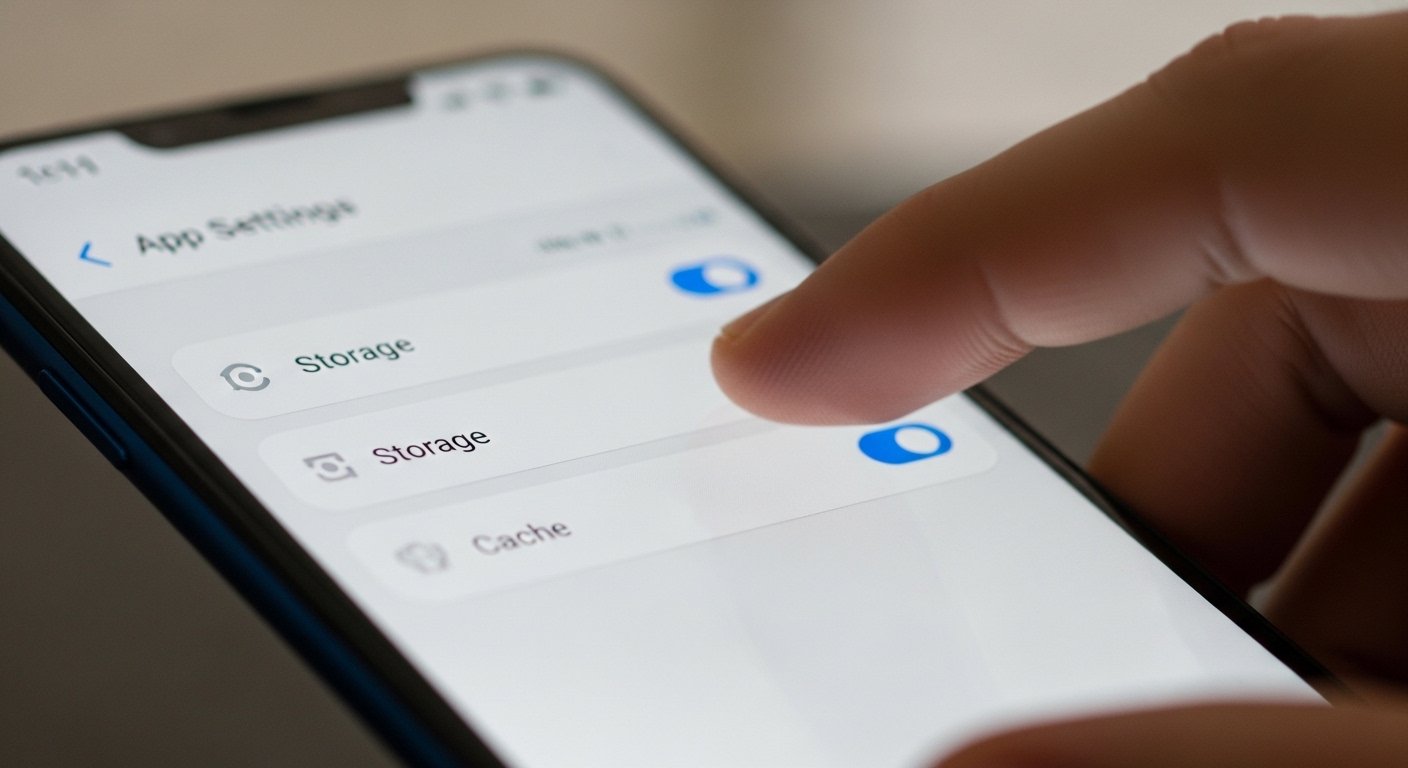
Android allows you to clear the “junk” files the app accumulates. This often solves the Instagram blank feed issue.
-
Go to Settings.
-
Tap Apps or Applications.
-
Find Instagram.
-
Tap Storage.
-
Select Clear Cache. (Do not tap “Clear Data” unless you are okay with logging back in).
6. Offload and Reinstall App (iPhone Only)
iPhone users don’t have a “Clear Cache” button, but you can “Offload” the app. This deletes the app’s bulk while keeping your personal data safe.
-
Go to Settings > General.
-
Tap iPhone Storage.
-
Find Instagram and tap it.
-
Tap Offload App.
-
Once done, tap Reinstall App from the same screen.
7. Update the Instagram App
If you haven’t updated your app in weeks, you might be running a buggy version.
-
Go to the Apple App Store or Google Play Store.
-
Search for “Instagram.”
-
If an Update button appears, tap it immediately.
8. Disable Your VPN
While VPNs are great for privacy, they can significantly slow down your connection or trigger Instagram’s security filters.
-
Open your VPN app and Disconnect.
-
Force close Instagram and reopen it to see if the feed loads.
9. Log Out and Log Back In
This refreshes your account’s “session” with Instagram’s servers, which can clear up account-specific glitches.
-
Go to your Profile.
-
Tap the three lines (Menu) in the top right.
-
Scroll to the bottom and tap Log Out.
-
Enter your credentials to log back in.
10. Restart Your Phone
It sounds cliché, but a “soft reset” clears your phone’s temporary RAM and restarts all network hardware.
-
Hold the power button and volume button (on most modern phones) and slide to power off.
-
Wait 30 seconds before turning it back on.
11. Check Date and Time Settings
If your phone’s date and time don’t match Instagram’s servers, the security certificate will fail, causing the Instagram feed not loading error.
-
Go to Settings > General/System > Date & Time.
-
Ensure Set Automatically is turned ON.
12. Reinstall Instagram Completely
If nothing else works, delete the app entirely and start fresh.
-
Delete the app from your home screen.
-
Restart your phone.
-
Download a fresh copy from the official App Store or Play Store.
Instagram Feed Not Loading on iPhone
If you are experiencing the Instagram feed not loading on iPhone specifically, ensure your iOS is up to date. Apple frequently releases network patches that affect how social media apps communicate with the web.
-
Go to Settings > General > Software Update.
-
Also, ensure Low Data Mode is turned off in your Cellular settings, as this prevents Instagram from pre-loading posts.
Instagram Feed Not Loading on Android
For those dealing with the Instagram feed not loading on Android, the culprit is often the “Data Saver” mode or background restricted data.
-
Go to Settings > Apps > Instagram > Mobile Data.
-
Make sure Allow background data usage is enabled.
-
If you use a Samsung or Pixel device, check that you aren’t in “Power Saving Mode,” which can throttle the app’s performance.
What to Do If Instagram Is Not Working Today
When a major outage occurs, you might see “Could Not Refresh Feed” across all your devices. If you suspect Instagram is not working today globally, here is how to confirm:
-
Check Social Media: Search for the hashtag #InstagramDown on X (Twitter). If thousands of people are posting about it in the last 10 minutes, the problem is on Instagram’s end.
-
Try the Desktop Version: Log in to Instagram.com on a computer browser. If the feed works there but not on your phone, the issue is with the mobile app or your device.
-
Wait it Out: Server-side issues usually take 30 minutes to 2 hours for Meta engineers to resolve.
Frequently Asked Questions
Why is my Instagram feed just blank?
A blank feed usually indicates a total loss of connection or a corrupted cache. Your phone thinks it’s loading content, but it isn’t receiving any data. Try switching from WiFi to Mobile Data to see if the content appears.
Why does Instagram keep loading but never refresh?
This is often caused by a “timed-out” connection. If your internet is extremely slow, Instagram will try to fetch the feed until it eventually gives up. Check your internet speed or restart your router.
Is Instagram down right now?
The best way to tell is to check Downdetector. If the chart shows a massive vertical spike in the last hour, Instagram is likely experiencing a regional or global outage.
Why is Instagram not refreshing on WiFi?
Your WiFi might have a firewall or “Parental Controls” that are blocking Instagram’s servers. Additionally, if many people are using the same WiFi, there may not be enough bandwidth to load high-def images.
How do I fix Instagram feed glitch?
The most effective way to fix a persistent glitch is to Log Out and Log Back In. If that fails, reinstalling the app will replace all system files with a clean, bug-free version.
Conclusion
Dealing with an Instagram feed not loading is frustrating, but it is rarely a permanent problem. By following these steps—starting with a simple server check and moving through cache clearing and app updates—you should be able to restore your feed in minutes.
Remember to always keep your app updated to the latest version to avoid future Instagram blank feed issues. If you’ve tried every step and the app is still not working today, the problem likely lies with Instagram’s internal servers, and a bit of patience is all that’s required.