
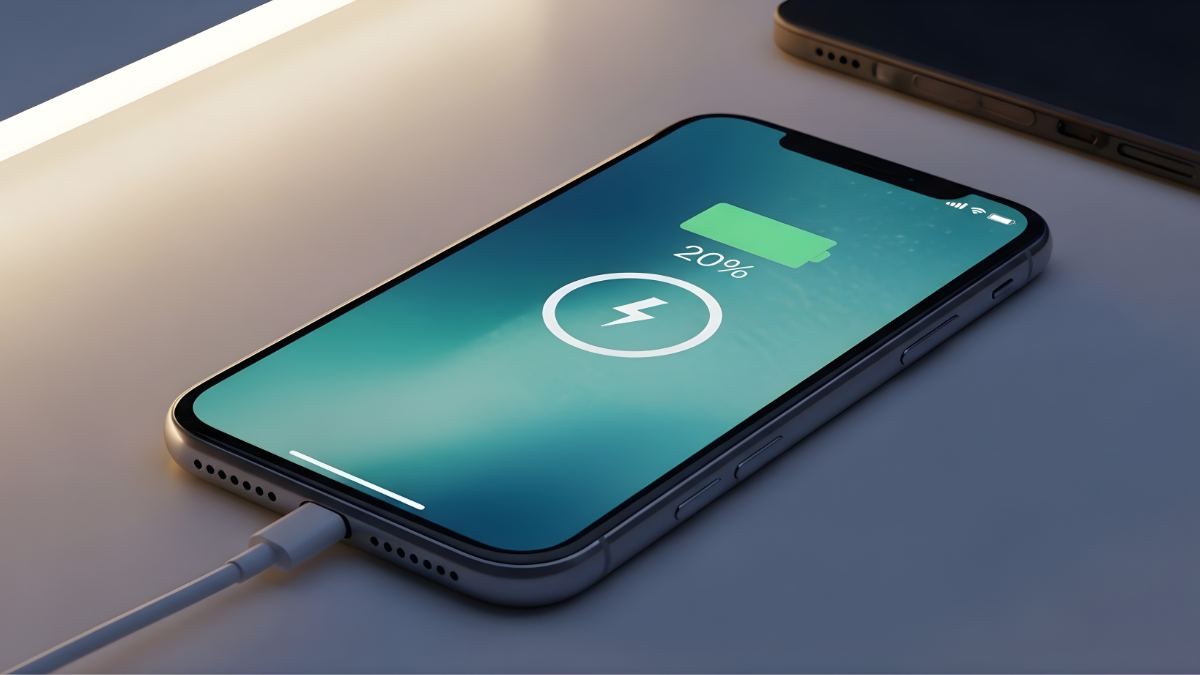
It is a frustrating moment: you plug your iPhone into its lightning or USB-C cable, see the familiar green lightning bolt icon appear, and walk away. An hour later, you return only to find that your battery percentage hasn’t moved—or worse, it has actually gone down.
If your iPhone is not charging but shows charging, you are certainly not alone. This is one of the most common complaints among iPhone users in the United States today, especially following recent iOS updates. Whether you are using the latest iPhone 17 or an older model, this “phantom charging” issue can disrupt your day.
Read more: iPhone Battery Draining Fast After iOS Update (10 Proven Fixes)
The good news? In the vast majority of cases, this isn’t a sign that your phone is broken. It is usually caused by a software setting, a bit of lint in your charging port, or a cable that has seen better days. This guide will walk you through exactly why this happens and provide clear, professional steps to get your battery climbing again.
What Does “iPhone Shows Charging but Battery Doesn’t Increase” Mean?
To solve the problem, we first need to understand what your iPhone is telling you. When you see the charging icon (the lightning bolt in the status bar), it means the iPhone has successfully detected a power source. It “thinks” it is receiving electricity.
However, “showing” charging and “actual” charging are two different things.
-
The Symbol: This is a handshake between your phone and the cable. It confirms a connection is made.
-
The Actual Charge: This is the flow of energy into the lithium-ion battery cells.
If your iPhone shows charging but battery not charging, there is a “bottleneck” somewhere. The electricity is reaching the phone, but it isn’t making it into the battery. This could be because the flow is too weak, the software is intentionally blocking it to protect the battery, or the phone is using power as fast as it’s receiving it.
Common Reasons Why iPhone Is Not Charging Properly
Before we dive into the fixes, let’s look at the most likely culprits. Understanding the “why” makes the “how” much easier to manage.
Faulty or Unsupported Accessories
Apple devices are picky. If you are using a cheap “gas station” cable or a third-party adapter that isn’t MFi (Made for iPhone) certified, your iPhone might reject the power flow even if it recognizes the connection.
Dirty or Damaged Charging Port
We carry our phones in pockets and purses where lint, dust, and debris live. Over time, this debris gets packed into the charging port. Even a tiny amount of lint can prevent the cable from making full contact with the pins inside.
Optimized Battery Charging
This is a built-in iOS feature designed to extend your battery’s lifespan. If your iPhone is stuck at the same percentage while charging, it might be because this feature has paused charging at 80% to prevent the battery from “stressing” while it sits on a charger for a long time.
Background Apps and High Power Usage
If you are charging your phone while running a GPS app, a high-graphics game, or a video call, your iPhone battery may not be increasing simply because the power consumption matches the power input.
iOS Software Bugs
Sometimes, an iPhone charging issue after an iOS update occurs because the software that manages power distribution has a temporary glitch. A simple “re-handshake” between the software and hardware is often all that’s needed.
Overheating
iPhone batteries are sensitive to heat. If your device feels hot to the touch—perhaps because it was sitting in the sun or you’re using a fast charger—the software will automatically slow down or stop the charging process to protect the hardware from permanent damage.
How to Fix iPhone Not Charging but Shows Charging (Step-by-Step)
Follow these steps in order, from the easiest to the more involved, to get your iPhone back to 100%.
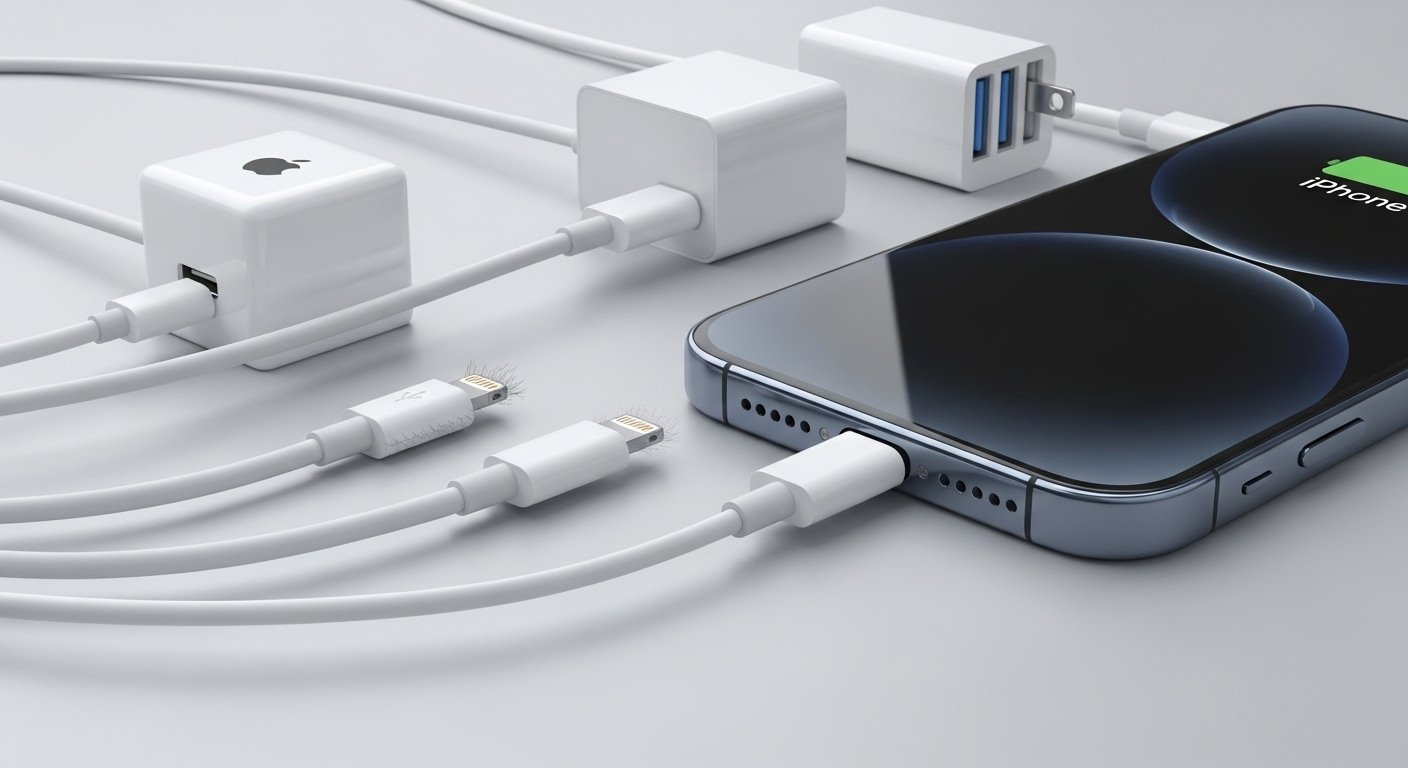
1. Check and Change the Charging Cable and Adapter
The most common cause of an iPhone charging slowly or not at all is the hardware outside the phone.
-
Inspect the cable: Look for fraying, kinks, or discoloration on the metal “teeth” of the connector.
-
Swap it out: Try a different Apple-certified cable and a different wall plug.
-
Power Source: If you are charging via a laptop USB port or a car outlet, try a high-quality wall adapter. These often provide more “amps” (power) than a computer port.
2. Clean the iPhone Charging Port Safely
You would be surprised how much lint can fit inside that tiny hole.
-
Look inside: Use a flashlight to peek into the port.
-
The Tool: Use a non-metallic object, like a wooden toothpick or a plastic dental flosser pick. Never use a metal paperclip or needle, as this can short out the pins.
-
The Technique: Gently “sweep” the bottom and corners of the port. If you see a clump of lint come out, try charging again.
3. Restart the iPhone
This is the “Golden Rule” of tech support. A restart clears the temporary memory and resets the power management system.
-
For iPhone 8 and later: Quickly press Volume Up, quickly press Volume Down, then hold the Side Button until the Apple logo appears.
-
Wait: Let the phone reboot completely and then plug it back in.
4. Turn off Optimized Battery Charging
If your phone is perpetually stuck at 80%, this feature is likely the reason.
-
Go to Settings > Battery > Battery Health & Charging.
-
Toggle off Optimized Battery Charging. You can choose “Turn Off Until Tomorrow” to see if that fixes the immediate issue.
5. Close Power-Hungry Background Apps
If your iPhone shows charging but battery stays the same, your phone might be working too hard.
-
Swipe up from the bottom of the screen to see your open apps.
-
Swipe up on apps like Maps, YouTube, or heavy games to close them.
-
Wait 15 minutes to see if the percentage begins to rise.
6. Update iOS
Apple frequently releases patches for battery and charging bugs.
-
Go to Settings > General > Software Update.
-
If an update is available, download and install it. This is a common fix for an iPhone charging issue after iOS update.
7. Reset All Settings
If the software is truly confused, you can reset the system settings without losing your photos or messages.
-
Go to Settings > General > Transfer or Reset iPhone > Reset.
-
Select Reset All Settings. Your phone will restart, and you will need to re-enter your Wi-Fi passwords and wallpaper, but your data remains safe.
8. Let the iPhone Cool Down
If your phone feels warm, unplug it and remove any protective case. Let it sit in a cool, shaded area for 20 minutes. iPhone charging logic is programmed to halt charging if the internal temperature exceeds a certain threshold.
9. Try Wireless Charging
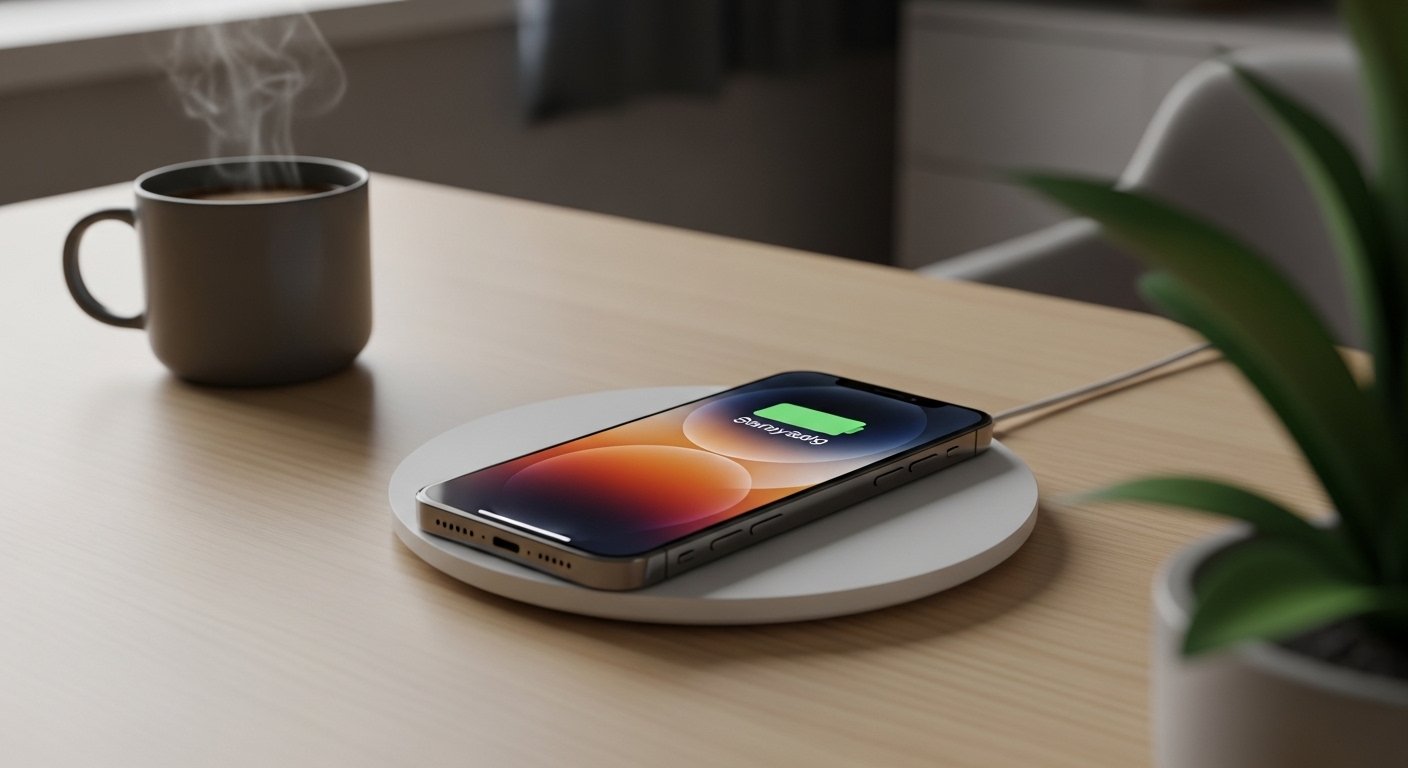
If your iPhone supports MagSafe or Qi wireless charging (iPhone 8 and newer), try placing it on a wireless pad. If it charges wirelessly but not via the cable, you know for certain that your charging port is either dirty or damaged.
iPhone Charging Slowly or Stuck at Same Percentage (Extra Fixes)
If your phone is moving, but at a snail’s pace, you might be experiencing a “trickle charge.” This happens when the power source is too weak.
Tips for faster charging:
-
Use a Fast Charger: Use a 20W or higher USB-C power adapter.
-
Airplane Mode: Turning on Airplane Mode reduces the power the phone uses to search for cellular signals, allowing more energy to go to the battery.
-
Don’t Use the Phone: The screen is the biggest power consumer. Leave the screen off while the device is plugged in.
When to Contact Apple Support or Visit an Apple Store
If you have tried all the steps above and your iPhone shows charging but battery not charging, it may be a hardware issue.
Check Your Battery Health
Go to Settings > Battery > Battery Health. If your “Maximum Capacity” is below 80%, or if you see a message saying “Your battery’s health is significantly degraded,” it is time for a professional battery replacement.
Signs of Hardware Damage
-
The charging port feels loose when you plug in the cable.
-
The phone only charges when the cable is held at a specific angle.
-
The phone gets dangerously hot when plugged in.
USA Support Advice: You can schedule an appointment at the “Genius Bar” through the Apple Support app or the Apple website. If you have AppleCare+, battery replacements are often free if the health is below 80%. If you aren’t near an Apple Store, many Best Buy locations are “Apple Authorized Service Providers” and can perform the same repairs.
Frequently Asked Questions (FAQs)
Why does my iPhone say charging but battery stays the same?
This usually happens because the power entering the phone is equal to the power the phone is consuming, or because a software feature like “Optimized Battery Charging” has paused the process to protect the battery.
Can a bad cable cause this issue?
Yes. A damaged or non-certified cable may provide enough voltage to trigger the “charging” icon but not enough amperage to actually fill the battery. Always try an official Apple cable first.
Does Optimized Battery Charging slow charging?
It doesn’t “slow” it in a traditional sense; it intentionally stops charging at 80% based on your daily routine. It waits until you are about to unplug it to finish the last 20%.
Is this a battery health problem?
Not necessarily. If your battery health is high (above 90%), the problem is likely your cable, port, or a software glitch. If it’s below 80%, the battery may be struggling to hold a charge.
Should I replace the battery?
Only if “Battery Health” shows a significant degradation or if the phone shuts down unexpectedly. Most charging issues are solved by cleaning the port or replacing the cable.
Conclusion
Finding that your iPhone is not charging but shows charging is a nuisance, but it is rarely a reason to panic. By systematically checking your accessories, cleaning your charging port, and adjusting your iOS settings, you can almost always resolve the issue at home.
Remember to:
-
Check your cable and wall plug first.
-
Clean the port with a toothpick.
-
Restart your device.
-
Check your Battery Health settings.
Most of the time, these simple steps will get your iPhone back to full power. If the problem persists, the experts at an Apple Store or authorized repair center are your best next step to ensure your device stays healthy for years to come.