

Laptop Fan Very Loud Suddenly? 10 Easy Fixes That Work
It starts with a faint hum, and before you know it, your laptop sounds like a jet engine preparing for takeoff. If your laptop fan is very loud suddenly, it can be distracting, frustrating, and even a bit alarming. You might worry that your computer is about to overheat or that your hardware is failing.
Whether you are a student finishing a paper, a remote worker on a Zoom call, or a gamer in the middle of a match, a noisy fan is a signal that your laptop is working overtime to stay cool. The good news is that a loud fan doesn’t always mean your computer is broken. In most cases, the laptop fan noise problem is caused by software glitches, dust buildup, or simple settings that can be adjusted in minutes.
Read more: Windows Update Stuck at 0 Percent (8 proven Fixes)
Read more: Windows 11 WiFi Connected But No Internet (10 Easy Fixes)
In this guide, we will walk through exactly why is my laptop fan so loud and provide step-by-step solutions for both Windows 11 and MacBook users to get your workspace quiet again.
Quick Answer: Why is my laptop fan very loud suddenly?
A laptop fan usually becomes loud suddenly because the CPU (processor) is overheating due to demanding background tasks, blocked air vents, or dust accumulation. When the internal temperature rises, the system forces the fan to spin at maximum speed to prevent hardware damage. Common culprits include malware, outdated software, or intensive “heavy” apps.
Why Is My Laptop Fan Very Loud Suddenly?
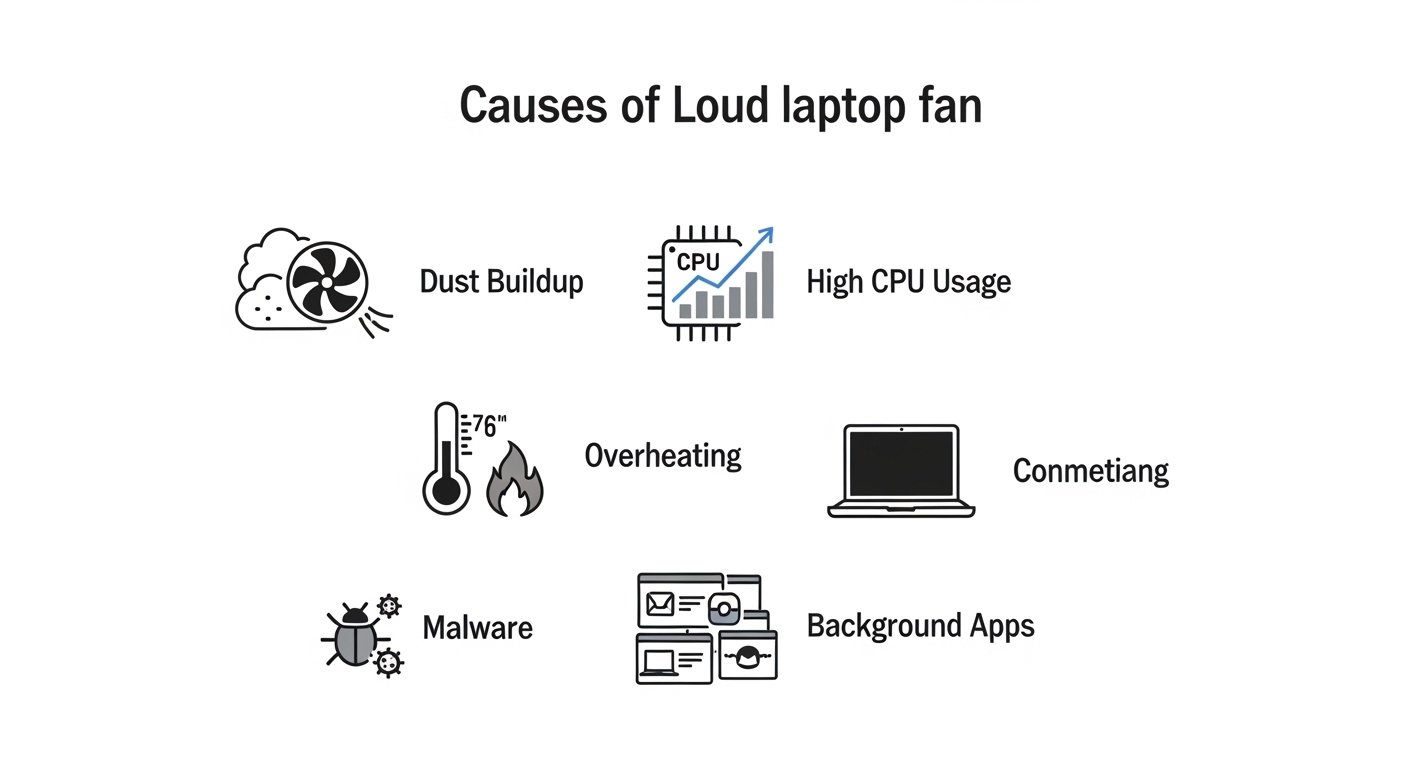
Before diving into the fixes, it helps to understand the “why” behind the noise. Your fan is a mechanical cooling system. Its only job is to push heat away from the sensitive internal components. If it’s loud, it’s because it’s struggling to keep up.
1. High CPU Usage
The Central Processing Unit (CPU) is the “brain” of your laptop. When you run too many programs at once—or one very demanding program—the CPU generates significant heat. The fan must spin faster to dissipate that heat.
2. Blocked Air Vents
Laptops suck in cool air and blow out hot air through small vents. If you use your laptop on a bed, couch, or carpet, those vents get blocked. This causes heat to trap inside, leading to a laptop fan running constantly.
3. Dust Accumulation
Over time, microscopic dust bunnies settle on the fan blades and heat sinks. This makes the fan heavier and less efficient, forcing it to work twice as hard to move the same amount of air.
4. Malware and Viruses
Some viruses or “cryptojacking” malware use your laptop’s resources in the background without you knowing. If your fan is screaming while you’re just looking at a blank desktop, a hidden process might be the cause.
5. Outdated BIOS or Drivers
The BIOS (Basic Input/Output System) controls how the hardware interacts with the software. If your BIOS or thermal drivers are outdated, the system might “misread” temperatures and trigger the fan unnecessarily.
10 Ways to Fix a Loud Laptop Fan
Follow these steps in order, starting with the easiest software checks before moving to physical cleaning.
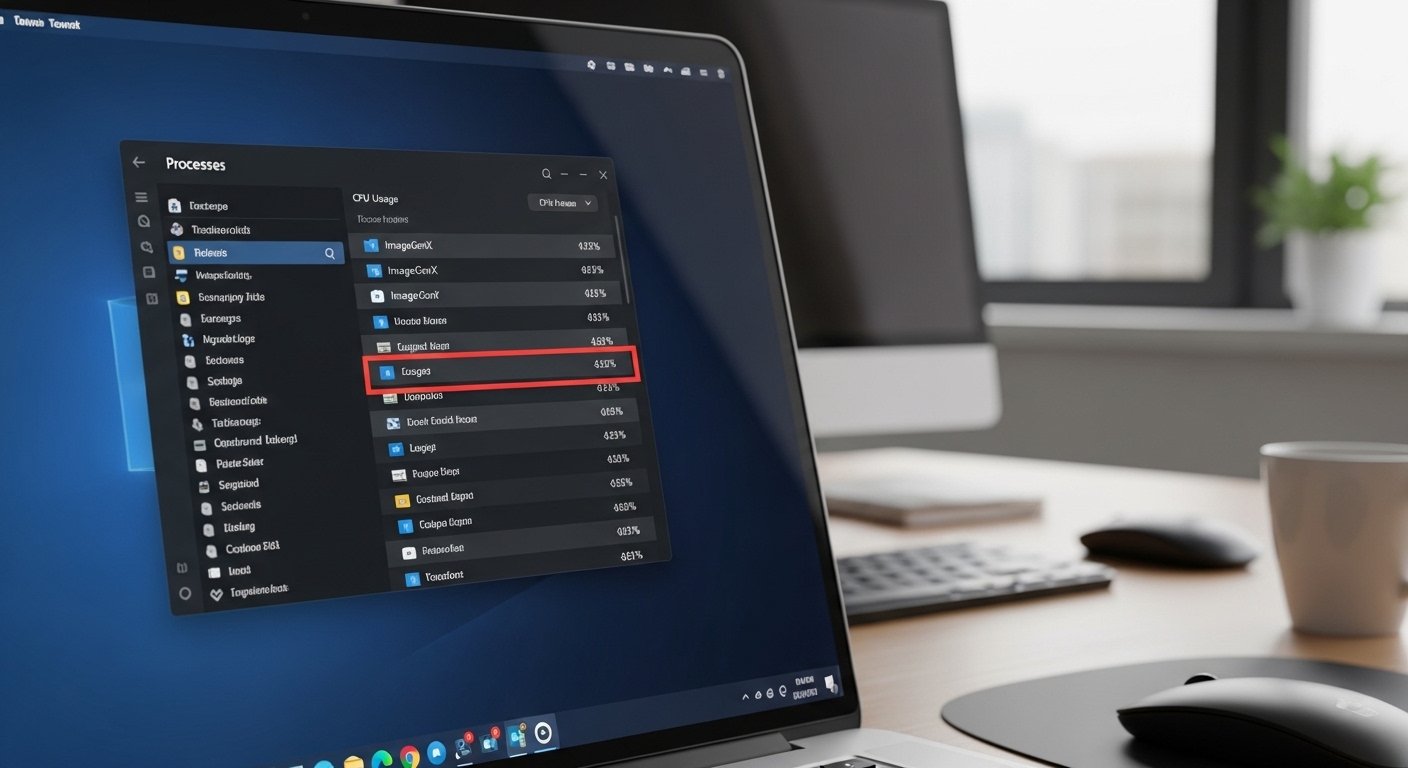
1. Check CPU Usage in Task Manager or Activity Monitor
The first step in a laptop overheating fix is identifying what is taxing the processor.
-
Windows 11: Press
Ctrl + Shift + Escto open Task Manager. Click the Processes tab and sort by CPU. If an app is using more than 20–30% while idle, that’s your culprit. -
MacBook: Press
Cmd + Space, type “Activity Monitor,” and hit Enter. Click the CPU tab and look for apps at the top of the “% CPU” list.
2. Close Unnecessary Background Programs
Often, we have dozens of browser tabs, Spotify, Slack, and Discord running at once. Each one adds a small amount of heat. Close everything you aren’t actively using. On Windows 11, check your “Startup Apps” in Settings to prevent unnecessary programs from launching when you turn on the computer.
3. Clean the Air Vents
If you can see visible dust in the side or bottom vents, your fan is choking.
-
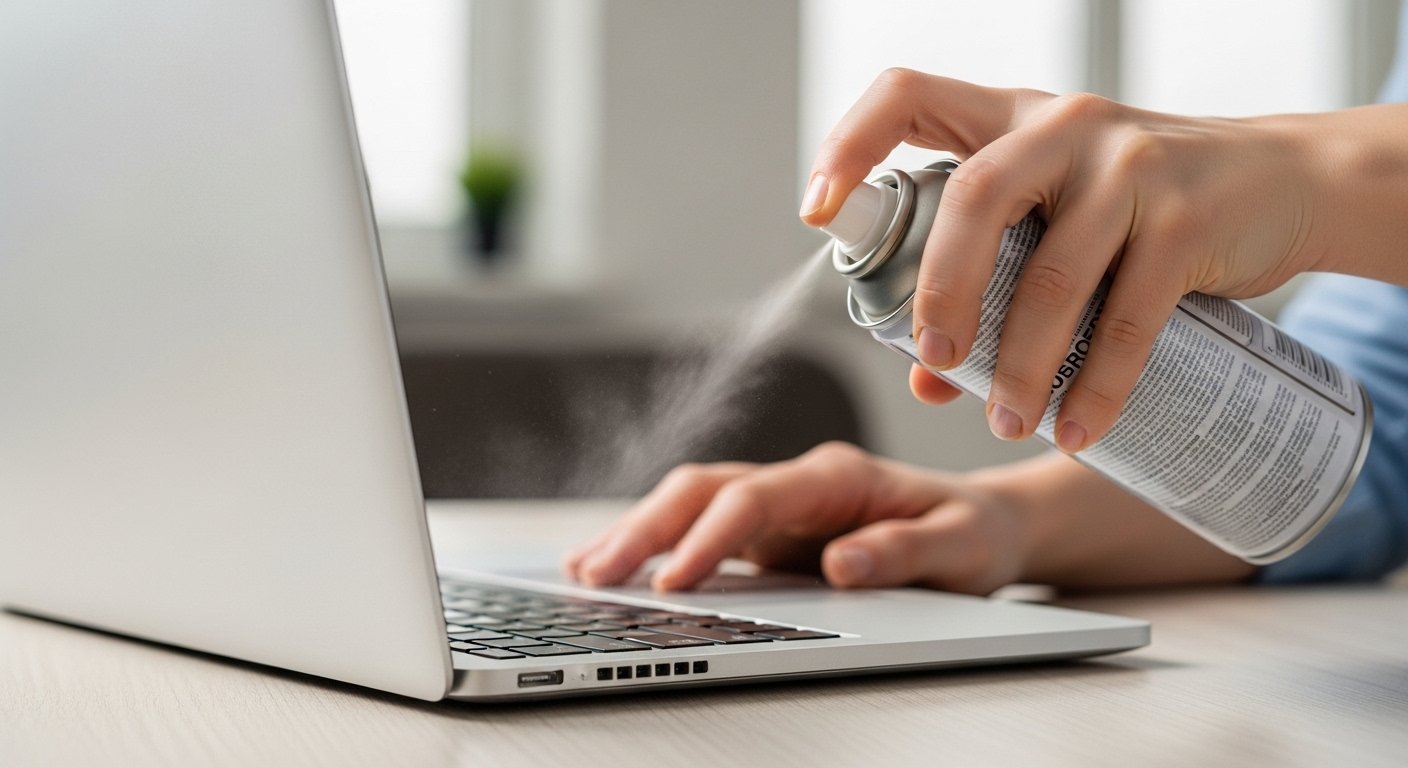
How to do it: Use a can of compressed air. Hold the can upright and use short bursts to blow air into the vents.
-
Pro Tip: Avoid blowing air directly into the fan at high pressure for too long, as it can spin the fan faster than it was designed to go and damage the bearings.
4. Use a Hard, Flat Surface
To reduce laptop fan noise, never use your laptop on a soft surface like a pillow. This acts like an insulator and blocks the intake. Always use a desk, a table, or a dedicated laptop cooling pad.
5. Update Your Operating System
Software bugs can sometimes cause the system to manage heat poorly.
-
Windows: Go to Settings > Windows Update > Check for updates.
-
Mac: Go to System Settings > General > Software Update.
6. Adjust Power Settings (Windows 11)
Windows allows you to trade performance for quietness.
-
Go to Settings > System > Power & battery.
-
Look for Power mode.
-
Change it from “Best performance” to “Balanced” or “Best power efficiency.” This lowers the CPU clock speed and reduces heat.
7. Scan for Malware
If your fan is loud even when no apps are open, run a full system scan. Use Windows Security (built-in) or a trusted third-party tool like Malwarebytes to ensure a hidden “miner” isn’t hogging your resources.
8. Reset the SMC (Intel MacBooks Only)
For older MacBooks, the System Management Controller (SMC) manages thermal functions. If your MacBook fan is loud suddenly, an SMC reset often fixes it.
-
How to: Shut down your Mac. Hold
Shift + Control + Optionand the Power button for 10 seconds, then release and restart. (Note: This does not apply to M1/M2/M3 Apple Silicon Macs, which reset during a simple restart).
9. Update the BIOS (Advanced)
Check your laptop manufacturer’s website (Dell, HP, Lenovo, etc.) for BIOS updates. Manufacturers often release patches specifically designed to “tune” the fan’s behavior to make it quieter.
10. Replace Thermal Paste (Professional Level)
If your laptop is more than 3-4 years old, the thermal paste—a silver “goop” that helps transfer heat from the CPU to the fan—may have dried out. Replacing this requires taking the laptop apart. If you aren’t comfortable with a screwdriver, take it to a pro.
Laptop Fan Loud on Windows 11 – What to Do
Windows 11 has a specific feature called “Passive Cooling Policy.” If your fan is driving you crazy, you can force the system to slow down the processor before it turns on the fan.
-
Search for “Edit Power Plan” in the Start menu.
-
Click Change advanced power settings.
-
Expand Processor power management.
-
Expand System cooling policy.
-
Change “Active” to “Passive” for both Battery and Plugged in.
-
Note: Active means the fan speeds up first. Passive means the CPU slows down first to reduce heat.
-
MacBook Fan Loud Suddenly – Causes & Fixes
Apple laptops are known for being quiet, so when a MacBook fan is loud suddenly, it’s very noticeable.
-
Check the Graphics Card: If you have a MacBook Pro with a dedicated GPU, using an external monitor or video editing software triggers the fans instantly.
-
Spotlight Indexing: If you just updated macOS, the system spends hours “indexing” files. This makes the fan run constantly for about 24 hours. Check Activity Monitor for a process called
mdsormdworker. If you see these, just wait—it will finish eventually.
Comparison: Laptop Fan Problems and Solutions
| Symptom | Likely Cause | Primary Fix |
| Fan starts loud immediately at boot | BIOS/Firmware issue | Update BIOS or Reset SMC |
| Fan gets loud while browsing/working | High CPU usage | Close background apps |
| Laptop feels hot, fan is loud | Blocked Vents / Dust | Clean with compressed air |
| Fan makes a grinding or clicking sound | Physical damage | Replace the fan hardware |
| Fan is loud but air is cool | Software bug | Update OS / Adjust Power Mode |
When to See a Technician
Sometimes, software fixes aren’t enough. You should seek professional help if:
-
The fan makes a grinding or rattling noise: This indicates a broken bearing or a physical obstruction.
-
The laptop shuts down suddenly: This means the cooling system has failed completely, and the laptop is turning off to prevent a fire or permanent chip damage.
-
The fan doesn’t spin at all: If the laptop is burning hot but silent, the fan motor is likely dead.
FAQs
Is it bad if my laptop fan is loud?
Not necessarily. It means the cooling system is doing its job. However, if it stays loud constantly while you aren’t doing anything intensive, it indicates an efficiency problem that could shorten the lifespan of your hardware due to heat stress.
Can a virus cause fan noise?
Yes. Many modern viruses perform “background mining” for cryptocurrency. These processes use 100% of your CPU power, generating massive heat and forcing the fan to run at max speed. Always run a malware scan if the noise is unexplained.
How do I quiet my laptop fan?
Start by closing unused apps and browser tabs. Ensure your laptop is on a flat, hard surface. If the noise persists, use a can of compressed air to blow dust out of the vents. On Windows, switching to “Power Efficiency” mode can also help.
Why is my laptop fan loud but not hot?
This usually happens due to a software glitch or an outdated BIOS. The system’s “temp sensors” may be sending the wrong signal, telling the fan to spin even though the hardware is cool. Updating your drivers usually solves this.
Should I replace the fan?
You should only replace the fan if it makes “unhealthy” noises, such as grinding, clicking, or chirping. If the fan is just moving air loudly, it is likely a software or dust issue that can be fixed without buying new parts.
Conclusion
Dealing with a laptop fan that is very loud suddenly is a common headache, but it’s rarely a “death sentence” for your computer. By managing your CPU usage, keeping your software updated, and ensuring your vents are clear of dust, you can return your laptop to its silent, efficient self.
Try the software-based fixes first—like checking Task Manager or Activity Monitor—before reaching for the compressed air. Most of the time, your laptop just needs a little “breathing room” to stay cool.