
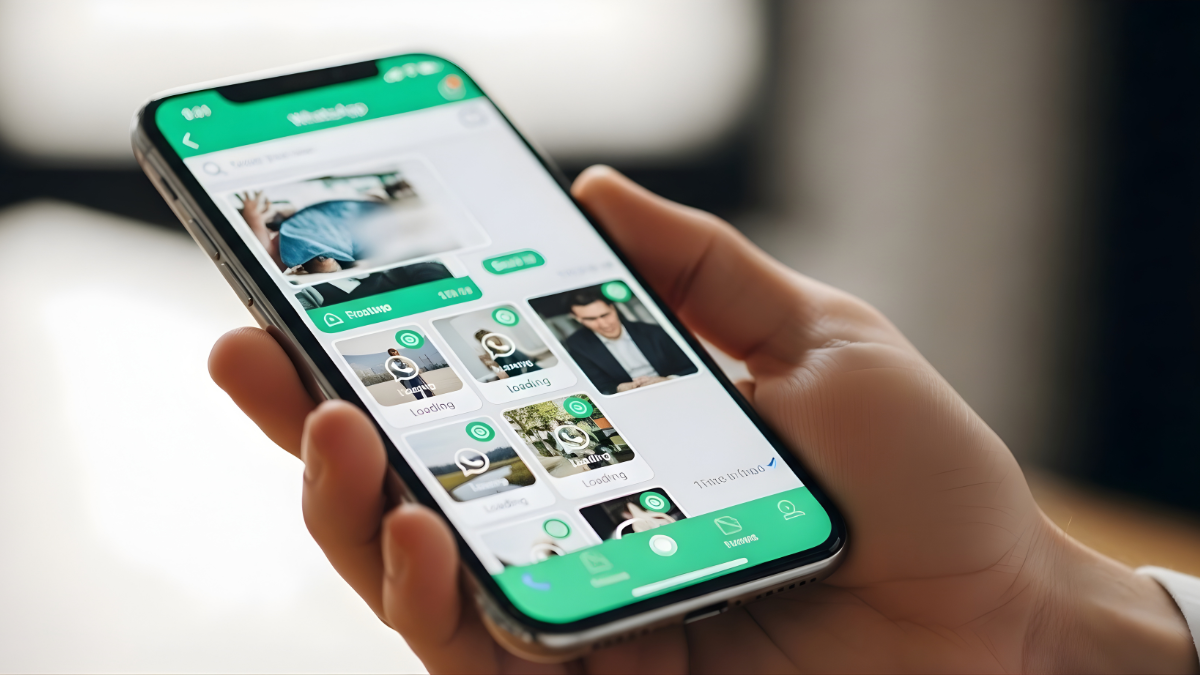
It is a common scenario: you receive a notification for a new message, open the chat, and find a blurred thumbnail where a photo should be. You tap the download icon, but nothing happens. Or perhaps you see a spinning circle that never finishes. If you are dealing with WhatsApp not downloading images on iPhone, you are certainly not alone.
This issue is one of the most frequent complaints among iOS users in the United States. Whether you are using the latest iPhone 15 or an older model like the iPhone 11, media download failures can disrupt your personal and professional communication. The good news is that this is rarely a sign of a broken phone. Usually, the culprit is a minor setting, a temporary network glitch, or a storage limitation.
This guide will walk you through the exact reasons why your media is stuck and provide a step-by-step roadmap to get your images loading perfectly again. For more whatsapp and other apps issues. Click Here
Why WhatsApp Is Not Downloading Images on iPhone
Before diving into the solutions, it helps to understand what is happening behind the scenes. When you receive an image, WhatsApp needs to verify your connection, check if there is room on your device, and get permission from iOS to save that file. If any part of that chain breaks, the download fails.

The most common causes include:
-
Unstable Internet Connection: Even if you have “bars,” your connection might be too slow or intermittent to handle media files.
-
Incorrect Date and Time: If your iPhone’s clock doesn’t match the WhatsApp server time, the app may refuse to download media for security reasons.
-
Storage Limitations: If your iPhone is almost out of space, iOS will block apps from adding new files like photos and videos.
-
Privacy Permissions: You may have accidentally restricted WhatsApp from accessing your Photos app or running in the background.
-
Outdated Software: Running an old version of WhatsApp or iOS can lead to compatibility bugs.
-
Server Outages: Occasionally, the problem isn’t your phone at all, but a temporary outage at Meta (the company that owns WhatsApp).
How to Fix WhatsApp Not Downloading Images on iPhone
Follow these steps in order. We have organized them from the simplest “quick fixes” to the more comprehensive troubleshooting methods.
1. Verify Your Internet Connection
The most frequent reason for WhatsApp media download problem iPhone users face is a weak signal. WhatsApp requires a stable “handshake” with its servers to transfer data.
-
The Fix: Open Safari and try to load a heavy website or play a YouTube video. If the video buffers, the issue is your network.
-
On iPhone: Toggle your Airplane Mode on for 10 seconds and then turn it off. This forces your phone to reconnect to the nearest cell tower or Wi-Fi router.
-
When to move on: If your internet works perfectly in other apps but WhatsApp still won’t load images, move to the next step.

2. Check Your iPhone Storage Space
If your iPhone is full, it simply has nowhere to put the new image. WhatsApp will often show a generic error message or just fail to start the download.
-
The Fix: Go to Settings > General > iPhone Storage.
-
On iPhone: Look at the graph at the top. If you have less than 1GB of free space, you need to delete some large files or unused apps. WhatsApp itself often takes up significant space; you can manage this within the app under Settings > Storage and Data > Manage Storage.
-
When to move on: If you have several gigabytes of free space and the images still won’t download, storage is not the problem.
3. Check Date and Time Settings
This sounds technical, but it is a common security feature. WhatsApp uses your phone’s date and time to encrypt your messages. If your phone thinks it is 2022, but the WhatsApp server knows it is 2026, the connection will be blocked.
-
The Fix: Go to Settings > General > Date & Time.
-
On iPhone: Ensure that the toggle for Set Automatically is turned On. If it is already on, toggle it off and back on again to refresh your location-based time zone.
-
When to move on: If your time is correct and the issue persists, the problem lies within app permissions.
4. Grant WhatsApp Access to Photos
If you have WhatsApp photos not showing in gallery, it might be because the app doesn’t have permission to “write” files to your iPhone’s storage.
-
The Fix: Go to Settings > Privacy & Security > Photos.
-
On iPhone: Find WhatsApp in the list and ensure it is set to All Photos. If it is set to “None” or “Selected Photos,” the app will struggle to save and display media properly.
-
When to move on: If permissions are granted but the “blurred image” remains, we need to look at the app’s internal settings.
5. Enable Background App Refresh
iPhone WhatsApp images not loading can sometimes be attributed to the app being “put to sleep” by iOS the moment you switch to another screen.
-
The Fix: Go to Settings > General > Background App Refresh.
-
On iPhone: Ensure the master toggle is ON (either Wi-Fi or Wi-Fi & Cellular Data). Scroll down to WhatsApp and ensure its individual toggle is also green. This allows WhatsApp to finish downloading media even if you aren’t looking at the screen.
-
When to move on: If this is enabled and the download still fails while the app is open, you likely need a software update.
6. Update WhatsApp and iOS
Developers release updates specifically to fix “bugs” that cause media failures. If you are running an older version, you might be fighting a known glitch that has already been fixed.
-
The Fix: Open the App Store, tap your profile icon, and pull down to refresh. Update WhatsApp if an update is available. Then, go to Settings > General > Software Update to see if an iOS update is pending.
-
When to move on: If you are on the latest software and still have the issue, it is time for a network reset.
7. Reset Network Settings
This is a powerful fix for WhatsApp images not downloading on iOS. It clears out saved Wi-Fi passwords and resets cellular configurations that might be corrupted.

-
The Issue: Over time, network “handshakes” can become corrupted, especially after traveling or switching carriers.
-
The Fix: Go to Settings > General > Transfer or Reset iPhone > Reset > Reset Network Settings.
-
Warning: You will need to re-enter your Wi-Fi passwords after doing this. It will not delete your photos or messages.
-
When to move on: If a network reset doesn’t work, we must consider the app itself might be corrupted.
8. Reinstall WhatsApp (The Last Resort)
If nothing else has worked, the app’s internal cache may be broken.
-
The Fix: First, go to WhatsApp > Settings > Chats > Chat Backup and tap Back Up Now. Once the backup is finished, delete the app from your iPhone and redownload it from the App Store.
-
Warning: Do not skip the backup step, or you will lose your conversation history.
-
When to move on: If a fresh installation doesn’t fix it, the issue may be related to your specific US carrier or iCloud configuration.
Extra Tips for USA iPhone Users
In the United States, certain carrier features and network settings can interfere with how your iPhone handles data-heavy apps like WhatsApp.
Low Data Mode
Many US carriers (like Verizon, AT&T, and T-Mobile) trigger “Low Data Mode” if you are near your monthly limit or on a restricted plan. This stops background downloads.
-
Check it: Go to Settings > Cellular > Cellular Data Options and ensure Low Data Mode is turned off.
iCloud Private Relay
If you are an iCloud+ subscriber, “Private Relay” can sometimes slow down media downloads by routing your traffic through multiple servers.
-
Check it: Go to Settings > [Your Name] > iCloud > Private Relay and try turning it off temporarily to see if media downloads resume.
Public Wi-Fi Restrictions
If you are at a coffee shop, airport, or university in the US, the network administrator might have blocked “VoIP” or messaging media to save bandwidth. Try switching to your 5G/LTE cellular data to see if the image downloads instantly.
Frequently Asked Questions (FAQs)
Why are my WhatsApp photos blurry and not downloading?
A blurry photo is a “thumbnail” or preview. It means WhatsApp knows an image exists but hasn’t fetched the full file from the server. This is almost always due to a connection timeout or lack of storage space on your iPhone.
How do I stop WhatsApp from failing downloads on cellular data?
Go to WhatsApp > Settings > Storage and Data. Under the “Media Auto-Download” section, ensure that “Photos” is set to Wi-Fi and Cellular. If it is set to “Wi-Fi” only, images will never download while you are out and about.
Does “Low Power Mode” affect WhatsApp downloads?
Yes. When your iPhone battery icon is yellow (Low Power Mode), iOS restricts background activity. This can cause WhatsApp to pause media downloads to save battery life. Plug your phone in or disable Low Power Mode to resume.
Why did my WhatsApp images stop appearing in my iPhone Photos app?
This is usually a permission issue. Go to WhatsApp > Settings > Chats and make sure the toggle for Save to Camera Roll is turned on. Also, check your iPhone Privacy settings to ensure WhatsApp has “All Photos” access.
Can a VPN cause WhatsApp download issues?
Yes. Some VPN servers are flagged or throttled by messaging services. If you are using a VPN, disconnect it and try downloading the image again.
When to Contact WhatsApp Support or Apple
If you have followed every step in this guide—including a full reinstall and a network reset—and you still cannot download images, the problem may be beyond your control.

-
Contact WhatsApp Support: If the issue only happens with one specific contact or group, the sender’s file might be corrupted. Use the “Contact Us” feature inside the WhatsApp settings to send a logs report.
-
Contact Apple Support: If you notice that other apps (like iMessage, Instagram, or Email) are also failing to download images, there may be a hardware issue with your iPhone’s wireless chip or a deeper iOS corruption that requires a technician.
Conclusion
Solving the issue of WhatsApp not downloading images on iPhone is usually a matter of checking the “big three”: your internet connection, your available storage, and your app permissions. By systematically working through the steps—from toggling Airplane Mode to checking your “Save to Camera Roll” settings—you can resolve 99% of media errors.
Start with the simplest fixes first, and remember to always keep a fresh backup in iCloud before making major changes like reinstalling the app. With these settings optimized, your WhatsApp experience should be smooth, fast, and full of the media you share with friends and family.