
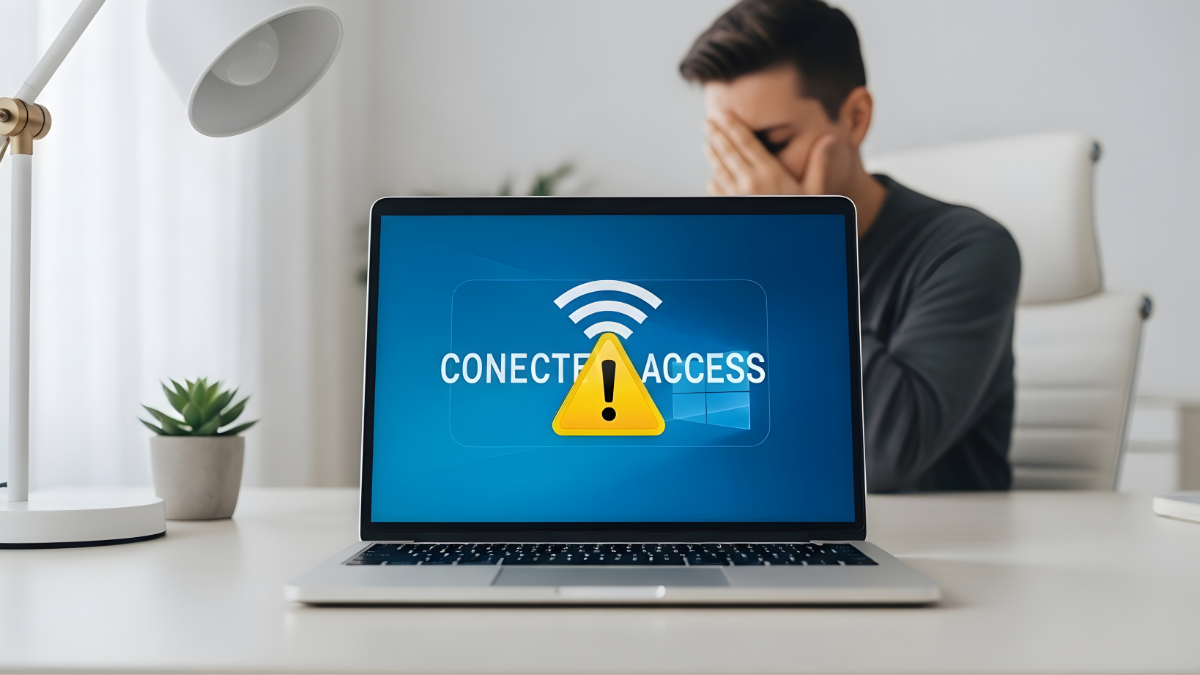
It is a frustrating moment: you sit down to work or stream your favorite show, and you see the WiFi bars full at the bottom of your screen. However, when you open a browser, nothing loads. You are facing the classic WiFi connected but no internet on laptop dilemma. This issue is incredibly common for users across the USA, whether you are on a home network in the suburbs, using public WiFi at a coffee shop, or connected to a complex office system.
The good news is that seeing “Connected, no internet” or “No internet, secured” is rarely a sign of a broken laptop. Most of the time, it is a simple communication breakdown between your device, your router, and your Internet Service Provider (ISP). Whether you are running Windows 10 or Windows 11, this guide will walk you through the exact steps to get back online immediately.
If you face another problem regarding Internet and Wifi Click Here
What Does “WiFi Connected but No Internet” Mean?
When your laptop connected to wifi but no internet access is available, it means your laptop has successfully established a local connection with your router. You are part of the local network (LAN), but that network isn’t successfully reaching the global web (WAN).

Think of it like a telephone system: your laptop has picked up the receiver and has a clear dial tone (the WiFi signal), but the person on the other end—the internet—isn’t picking up. This usually happens because of a configuration error in your settings, a temporary glitch in the hardware, or a service disruption from your provider.
Common Reasons This Happens
Before diving into the fixes, it helps to understand why your wifi connected but internet not working. Common culprits include:
-
Router or Modem Issues: The hardware may have “frozen” or lost its handshake with the ISP.
-
ISP Outage: Providers like Xfinity, Spectrum, or AT&T might be experiencing local maintenance.
-
Incorrect Network Settings: A recent update might have changed your IP configuration.
-
DNS Problems: The “phonebook” of the internet (DNS) is failing to translate web addresses.
-
IP Conflict: Two devices on your network are trying to use the same digital address.
-
Outdated Drivers: Your laptop’s WiFi card software is too old to communicate with the router.
-
Security Software: An overzealous antivirus or firewall might be blocking your traffic.
10 Step-by-Step Fixes to Get Back Online
Follow these steps in order. We start with the easiest, most likely solutions first.
1. Restart Your Laptop, Modem, and Router
This is the “Golden Rule” of tech support. Electronics can develop “cache” errors or temporary glitches that a simple power cycle clears.
-
How to do it: Shut down your laptop. Unplug your modem and router from the power outlet. Wait at least 30 seconds. Plug the modem back in first, wait for the lights to stabilize, then plug in the router. Finally, turn on your laptop.
-
Why it works: It forces the hardware to re-establish a fresh connection and clears any stuck processes.
2. Check if Internet Works on Other Devices
Before changing laptop settings, check your smartphone or a tablet.
-
The Test: Connect your phone to the same WiFi. If the phone has internet, the problem is your laptop. If the phone also has no internet, the problem is your router or your ISP.

3. Turn Airplane Mode ON and OFF
Sometimes the WiFi radio on your laptop needs a quick “nudge” to reset its search parameters.
-
Windows 11: Click the Network icon in the Taskbar (bottom right) and click the Airplane mode icon. Wait 5 seconds, then click it again.
-
Windows 10: Click the Notifications icon (bottom right) and select Airplane mode. Toggle it off after a few seconds.
4. Forget and Reconnect the WiFi Network
If your laptop wifi says connected but no internet access, the saved password or security protocol might be corrupted.
-
Steps: 1. Go to Settings > Network & Internet > WiFi. 2. Select Manage known networks. 3. Find your network and click Forget. 4. Click the WiFi icon in your Taskbar and log back in with your password.
5. Run the Windows Network Troubleshooter
Windows has a built-in tool designed to find and fix common connectivity errors automatically.
-
Windows 11: Go to Settings > System > Troubleshoot > Other troubleshooters. Click Run next to “Network and Internet.”
-
Windows 10: Go to Settings > Update & Security > Troubleshoot > Additional troubleshooters. Select Internet Connections and run the tool.

6. Reset TCP/IP Settings (Command Prompt)
If your network “stack” is corrupted, you can reset it using a few simple commands.
-
Steps:
-
Type cmd in your Windows search bar, right-click it, and select Run as Administrator.
-
Type the following commands one by one, hitting Enter after each:
-
netsh winsock reset -
netsh int ip reset -
ipconfig /release -
ipconfig /renew -
ipconfig /flushdns
-
-
-
Why it works: This flushes out old IP data and requests a brand-new address from your router.
7. Change DNS to Google DNS
The default DNS provided by your ISP can sometimes be slow or unreliable. Switching to Google’s public DNS often fixes the wifi connected no internet windows 11 error.
-
Steps:
-
Open Control Panel > Network and Sharing Center.
-
Click Change adapter settings.
-
Right-click your WiFi and select Properties.
-
Select Internet Protocol Version 4 (TCP/IPv4) and click Properties.
-
Select “Use the following DNS server addresses” and enter:
-
Preferred:
8.8.8.8 -
Alternate:
8.8.4.4
-
-
Click OK.
-
8. Disable VPN or Proxy Settings
If you use a VPN for work or privacy, it may have disconnected improperly, “locking” your internet access.
-
Steps: Open your VPN app and ensure it is fully disconnected. Then, go to Settings > Network & Internet > Proxy and ensure “Use a proxy server” is turned Off.

9. Update or Reinstall WiFi Drivers
An outdated driver can cause a wifi connected but no internet windows 10 issue, especially after a system update.
-
Steps:
-
Right-click the Start button and select Device Manager.
-
Expand Network adapters.
-
Right-click your WiFi adapter (usually Intel, Realtek, or Qualcomm) and select Update driver.
-
If that doesn’t work, select Uninstall device, then restart your laptop. Windows will automatically reinstall the driver upon reboot.
-
10. Temporarily Disable Antivirus/Firewall
Sometimes security suites like McAfee, Norton, or even Windows Defender can misidentify safe traffic as a threat.
-
Test: Turn off your firewall temporarily. If the internet starts working, you need to add an “exception” for your browser or network in the security settings. Remember to turn it back on once the test is done!
Specific Fix for Windows 11 Users
Windows 11 handles network discovery differently than older versions. If you are struggling with wifi connected no internet windows 11, check your Network Profile Type.
-
Go to Settings > Network & Internet > WiFi.
-
Click on your connected network’s properties.
-
Switch the network profile from Public to Private (or vice versa).
-
Sometimes, Windows 11 “Pause Updates” feature can also hang network processes. Ensure your system isn’t in the middle of a major update by checking Windows Update.
Related guide: [Windows 11 WiFi not working]
Specific Fix for Windows 10 Users
For those on wifi connected but no internet windows 10, the issue is frequently related to “Fast Startup.” This feature doesn’t fully clear the kernel cache, which can lead to driver conflicts.
-
Go to Control Panel > Power Options.
-
Click Choose what the power buttons do.
-
Click Change settings that are currently unavailable.
-
Uncheck Turn on fast startup.
-
Restart your laptop.
If Internet Works on Phone but Not Laptop
If your phone is browsing flawlessly but your laptop is stuck, the issue is local to the laptop hardware or software.
-
Browser Cache: Try opening a different browser (e.g., use Edge if Chrome isn’t working). If Edge works, clear your Chrome cache/cookies.
-
MAC Filtering: Ensure your laptop hasn’t been accidentally blocked in the router’s admin settings.
-
Time and Date: If your laptop’s clock is wrong, security certificates (HTTPS) will fail, making it look like the internet is down. Ensure your time is set to “Set time automatically.”
When to Contact Your Internet Provider
If you have tried the steps above and no devices in your house can connect, you likely have an ISP outage.
-
Signs of an Outage: The “Internet” or “Online” light on your modem is red or blinking amber.
-
Common USA ISPs: Log into the mobile app for Xfinity (Comcast), Spectrum, AT&T, or Verizon Fios. Most have an “Outage Map” or a status checker.
-
Confirming Safely: Call your ISP’s support line. They can run a remote “ping” on your modem to see if the signal is reaching your house.

FAQs
Why does my WiFi say connected but no internet?
It means your laptop has a physical/wireless link to your router, but the router cannot communicate with the wider web, or your laptop’s software is blocking that communication.
Can DNS cause no internet access?
Yes. If your DNS (Domain Name System) isn’t working, your laptop can’t translate “https://www.google.com/search?q=google.com” into the IP address it needs to load the site.
Does resetting network settings delete files?
No. Resetting your network settings only removes saved WiFi passwords and resets your network hardware to factory defaults. Your photos, documents, and apps remain safe.
Why does this happen after a Windows update?
Updates often include new drivers or security patches. If a driver is incompatible with your specific WiFi card, it can break the connection.
Is it a router problem or laptop problem?
If other devices (like your phone) work, it’s a laptop problem. If nothing works, it’s a router or ISP problem.
Conclusion
Fixing a WiFi connected but no internet on laptop error is usually a matter of trial and error. Start with a simple restart, move to resetting your IP and DNS settings, and finally check for driver updates. By following these steps, you can avoid the cost of a repair shop and get back to your digital life in minutes.
If you’ve tried everything and still can’t get online, it might be time to check for hardware failure in your router.