
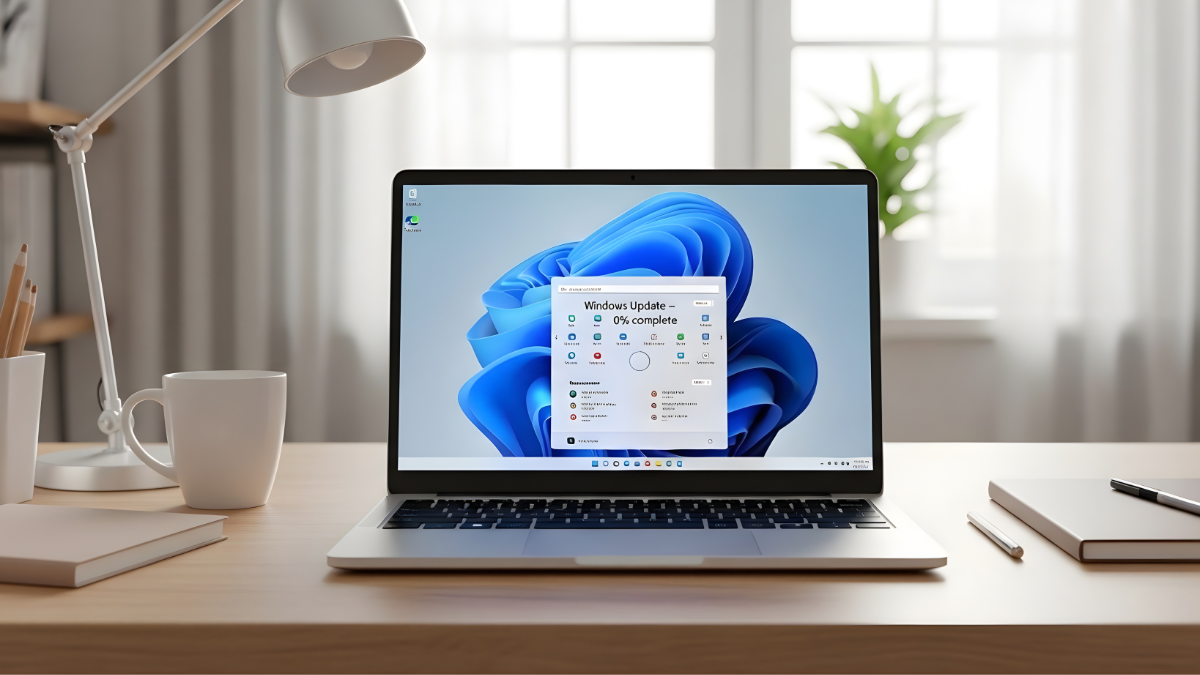
It is a common frustration for many PC users in the United States: you sit down to finish a project or relax with a game, only to find your Windows update stuck at 0 percent. You wait ten minutes, then twenty, and finally an hour, but the progress bar refuses to budge. It feels like your computer is frozen in time, leaving you wondering if something is fundamentally wrong with your hardware.
First, take a deep breath. If your Windows update is not progressing, it does not mean your computer is broken or that you have lost your data. This is a well-documented software glitch that can happen on both Windows 10 and Windows 11. Usually, the system is simply “confused” by a background process or a temporary communication error with Microsoft’s servers.
Read more: Windows 11 WiFi Connected But No Internet (10 Easy Fixes
Whether you are using a high-end gaming desktop or a reliable work laptop, the solutions are generally the same. This guide will walk you through why this happens and provide safe, verified methods to get your system back on track and fully updated.

Why Windows Update Gets Stuck at 0 Percent
Understanding the “why” can help you prevent this issue in the future. There isn’t just one single reason why an update might stall; rather, it is usually a combination of environmental and system factors.
Internet Connection Issues
Windows updates require a steady, uninterrupted flow of data. If your Wi-Fi signal drops momentarily or your ISP experiences a “micro-outage,” the download may pause. Sometimes, the update service doesn’t realize the connection has returned and remains idle.
Corrupted Update Files
Sometimes a file is “misread” during the initial download phase. When this happens, the system doesn’t know how to proceed with the rest of the package, leading to a Windows update stuck at 0 percent Windows 11 or 10 error.
Low Storage Space
Windows updates are often larger than they appear. If your “C:” drive is almost full, Windows may stop the download before it even starts because it realizes there is no room to “unpack” the new files.
Antivirus or Firewall Interference
Third-party security software can be overprotective. It may flag a legitimate Microsoft update file as a threat, blocking the download and leaving you with a progress bar that never moves.
Microsoft Server Delays
For users in the USA, server traffic can be a factor during “Patch Tuesday” (the second Tuesday of every month). When millions of devices attempt to ping Microsoft’s servers simultaneously, delays are inevitable.
What to Do Before You Start Fixing
Before diving into technical repairs, perform these preliminary checks. Often, the “fix” is simply a bit of preparation and patience.
-
The 30-Minute Rule: Sometimes the “0 percent” status is deceptive. Windows might be performing a silent background cleanup of old files before it starts the new download. Give it at least 30 minutes before intervening.
-
Check Your Power: If you are on a laptop, ensure it is plugged into a wall outlet. Windows often pauses updates if the battery is below 20% to prevent the PC from dying mid-installation.
-
Verify Internet Stability: Open your web browser and try to load a heavy video site. If the video buffers, your internet—not Windows—is likely the culprit.
FIX 1: Restart Your Computer Properly
It sounds like a cliché, but restarting is a powerful tool. A standard restart flushes the system RAM and closes background processes that might be “locking” the update service.
-
Click the Start button.
-
Select the Power icon.
-
Choose Restart (do not choose “Shut Down,” as Windows 10 and 11 use “Fast Startup” which doesn’t fully clear the system cache during a shutdown).
-
Once the computer reboots, go back to Settings > Update & Security (or Windows Update) and try again.
This works because it forces the Windows Update service to initialize from scratch, clearing out any temporary hangs.

FIX 2: Check and Reset Your Internet Connection
If your Windows update is taking too long or staying at 0%, your network configuration might need a “nudge.”
Basic Reset
-
If you are on Wi-Fi, toggle your Airplane Mode on and off.
-
If possible, plug in an Ethernet cable for a more stable connection.
Flush Your DNS
This clears the “address book” your computer uses to find Microsoft’s download servers.
-
Type cmd in your Windows search bar.
-
Right-click Command Prompt and select Run as Administrator.
-
Type
ipconfig /flushdnsand press Enter. -
You should see a message saying the DNS Resolver Cache was successfully flushed.
FIX 3: Run Windows Update Troubleshooter
Microsoft knows that updates can get stuck, so they built a specific tool to find and fix the problem automatically.
Windows 11 Steps
-
Click Start and go to Settings.
-
Go to System > Troubleshoot.
-
Click Other troubleshooters.
-
Find Windows Update and click Run.
Windows 10 Steps
-
Open Settings and go to Update & Security.
-
Click Troubleshoot in the left-hand menu.
-
Click Additional troubleshooters.
-
Select Windows Update and click Run the troubleshooter.
The tool will look for “service registration” issues or a corrupted “pending” database and attempt to repair them on the fly.

FIX 4: Free Up Disk Space
If you are seeing Windows update stuck at 0 percent Windows 10, it might be a lack of physical room. Windows generally needs about 10GB to 20GB of free space to successfully process a major update.
-
Type Disk Cleanup in your search bar and open the app.
-
Select your main drive (usually C:).
-
Check the boxes for Temporary Files, Recycle Bin, and System Created Windows Error Reports.
-
Click OK and then Delete Files.
-
Check your “Downloads” folder and move large videos or installers to an external drive.
FIX 5: Temporarily Disable Antivirus or Firewall
Occasionally, security software prevents your PC from “talking” to the update server.
Safety Disclaimer: Only do this while you are attempting to trigger the update. Do not browse the web or download other files while your protection is off.
-
Find your antivirus icon in the bottom-right system tray (near the clock).
-
Right-click it and look for “Disable for 10 minutes” or “Pause protection.”
-
Try to run the Windows Update again.
-
Immediately re-enable your antivirus once the download progresses past 0 percent.

FIX 6: Reset Windows Update Components Manually
If the automated troubleshooter fails, you may need to manually clear the “Software Distribution” folder. This is where Windows stores temporary update files. If a file here is corrupted, the update will never move.
-
Type cmd in your search bar, right-click it, and Run as Administrator.
-
Type the following commands one by one, pressing Enter after each:
-
net stop wuauserv(This stops the update service) -
net stop bits(This stops the background transfer service)
-
-
Keep the command prompt open. Now, open File Explorer and navigate to:
C:\Windows\SoftwareDistribution -
Delete all files and folders inside this folder. (Don’t worry, Windows will recreate them safely).
-
Go back to the Command Prompt and type:
-
net start wuauserv -
net start bits
-
-
Restart your PC and check for updates again.
FIX 7: Update Using Microsoft Update Assistant
If the built-in settings menu is completely stuck, you can bypass it using the Microsoft Update Assistant. This is an official standalone tool designed to force-start updates.
-
Go to the official Microsoft “Download Windows” website.
-
Look for the Windows Update Assistant (for Windows 10) or Installation Assistant (for Windows 11).
-
Download and run the
.exefile. -
Follow the on-screen prompts. This tool is much more robust than the standard settings menu and can often push through when the regular method fails.
FIX 8: Check Microsoft Server Status
Sometimes the problem isn’t your computer—it’s Microsoft. If you are in the United States during a major rollout (like a new version of Windows 11), the servers can be overwhelmed.
-
Visit social media platforms or tech news sites to see if others are reporting “Windows update stuck at 0 percent.”
-
If there is a widespread outage, no amount of troubleshooting on your end will work.
-
In this case, the best fix is to simply wait 24 hours and try again when server traffic has normalized.

Common Mistakes to Avoid
When your Fix Windows update stuck attempts aren’t working immediately, it’s easy to get frustrated. Avoid these common pitfalls:
-
Force Shutdowns: Never hold the power button down while the screen says “Working on updates.” This can lead to a corrupted operating system that won’t boot at all.
-
Interrupting Downloads: If the percentage jumps from 0 to 10, don’t unplug your internet or turn off the PC. Let it finish.
-
Using Third-Party “Driver Fixers”: Many websites offer “Update Repair Pro” tools. Avoid these. They are often “bloatware” or malware. Only use tools provided by Microsoft.
FAQs Section
Is it safe to restart if Windows update is stuck at 0 percent?
Yes, if the update is still at 0 percent, it has likely not begun the installation process yet. It is safe to restart. However, if the percentage is higher (like 30% or 50%), you should wait longer before considering a restart.
How long should Windows update stay at 0 percent?
On an older machine or a slow connection, 15–20 minutes is normal. If it stays at 0 percent for over an hour, it is safe to assume the process is stuck and requires intervention.
Will I lose files if the update fails?
No. Windows updates are designed to keep your personal files, photos, and documents safe. Even if an update fails to download or install, your data remains untouched.
Why does Windows update take so long on new laptops?
New laptops often have “out of the box” updates that have accumulated since the device was manufactured. This can result in several gigabytes of data that need to be processed all at once.
Should I reinstall Windows?
Reinstalling Windows should be your absolute last resort. In 99% of cases, resetting the update components or using the Update Assistant will fix the issue without needing a full reinstallation.
Conclusion
Finding your Windows update stuck at 0 percent is undeniably annoying, but it is rarely a sign of a dying computer. By following the steps above—starting with a simple restart and moving toward resetting the update components—you can overcome almost any update-related “hang.”
Remember that patience is a key part of Windows maintenance. Often, the system is working hard behind the scenes even when the progress bar isn’t showing it. Keep your disk space clear, your internet stable, and your PC plugged in, and you will find that these update hiccups become much less frequent.