
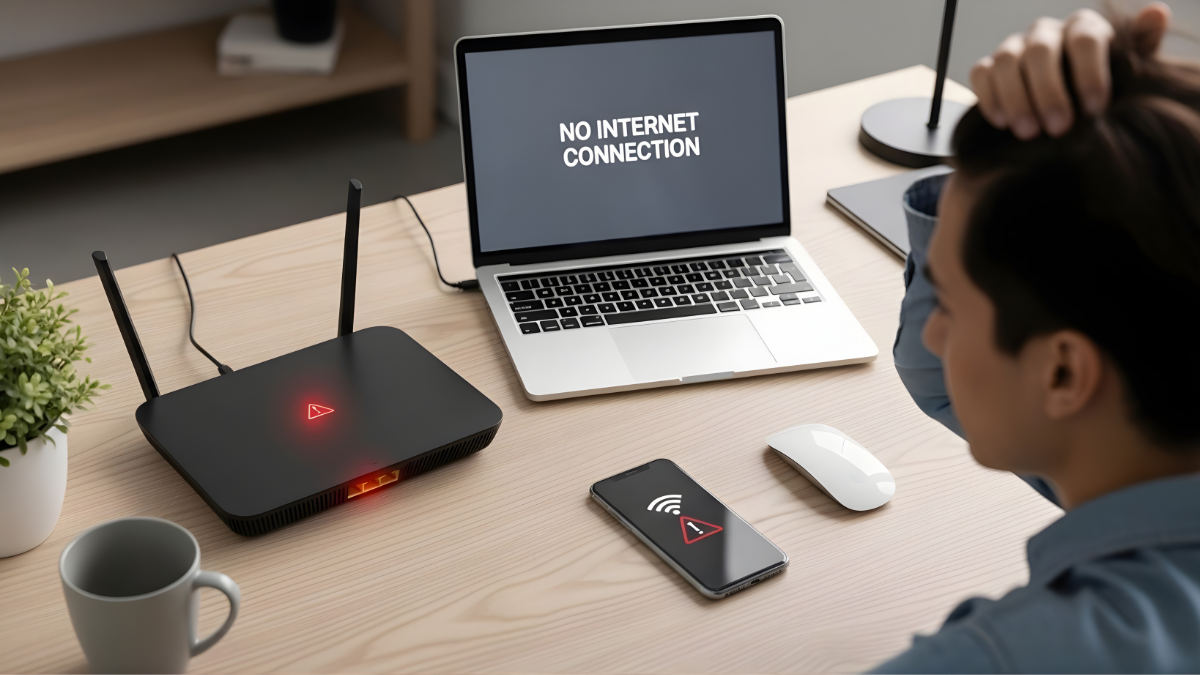
There is nothing more frustrating than waking up, grabbing your coffee, and realizing your Xfinity WiFi is not working today. In an era where we rely on the internet for remote work, school, streaming, and staying connected with loved ones, a network drop-out can bring your entire day to a screeching halt.
Read more: WiFi Slow Only on One Device? Causes & Easy Fixes
Read more: WiFi Connected but No Internet on Laptop (10 Proven Fixes)
Whether you are seeing a “No Internet Connection” message on your laptop or noticing a strange blinking light on your gateway, connectivity issues are common. The good news is that most Xfinity internet problems are caused by simple glitches that you can fix yourself without waiting hours for a technician. This guide will walk you through the most effective, step-by-step solutions to get your home network back online immediately.
Possible Reasons Why Xfinity WiFi Is Not Working Today
Before diving into the fixes, it helps to understand why your connection might be failing. Identifying the root cause can save you a lot of time. Here are the most common culprits:
-
Local Service Outages: Sometimes the problem isn’t your equipment; it’s a neighborhood-wide Xfinity internet outage today caused by maintenance or damaged lines.
-
Hardware Glitches: Your Xfinity router or modem may have “frozen” and simply needs a power cycle to clear its memory.
-
Loose Cables: A loose coaxial cable or a frayed Ethernet cord can easily disrupt the signal coming into your home.
-
Network Congestion: If too many devices are streaming 4K video or gaming at once, your bandwidth might be stretched to the limit.
-
Signal Interference: Large metal objects, mirrors, or other electronic devices (like microwaves) can block your WiFi signal.
-
Outdated Firmware: If your gateway’s internal software is out of date, it may struggle to maintain a stable connection.
Check If There Is an Xfinity Internet Outage
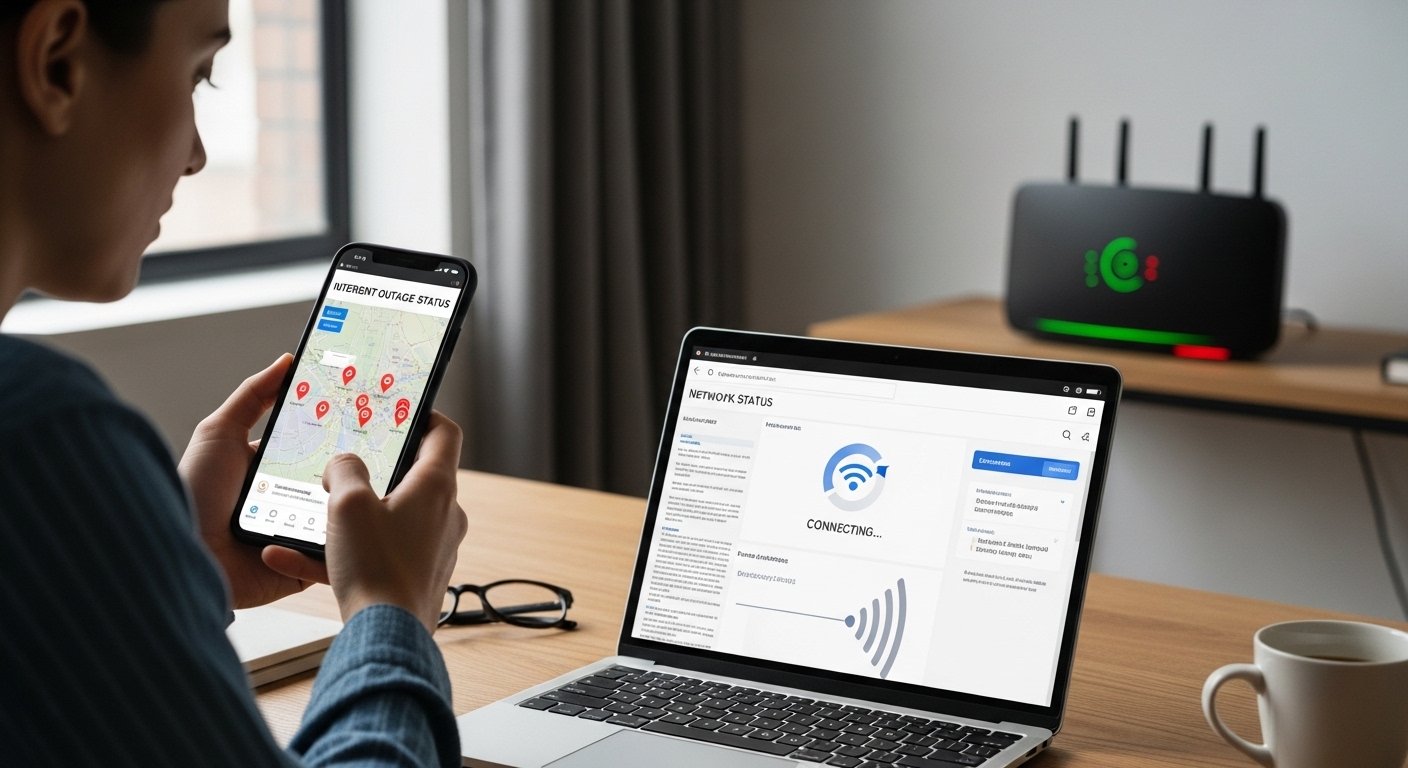
The first thing you should do when you find Xfinity WiFi not working today is check if the problem is on Comcast’s end. If there is a regional outage, no amount of restarting your router will fix it.
How to Check for an Outage:
-
Use the Xfinity App: Open the Xfinity app on your smartphone using your cellular data. The home screen usually displays a massive banner if there is a known outage in your area.
-
Visit the Status Map: Go to the Xfinity Status Center on your mobile browser. Sign in to see a real-time map of reported issues.
-
Text for Updates: You can text OUT to 266278 (COMCST) to get an automated update on service status for your registered address.
What to do if there is an outage:
If an outage is confirmed, all you can do is wait. Xfinity usually provides an “Estimated Time of Restoration.” In the meantime, you can use your smartphone as a mobile hotspot if your cellular plan allows it.
Restart Your Xfinity Router and Modem
If there is no outage reported, the most effective “universal fix” is a simple restart. This refreshes your connection to the Xfinity servers and clears out temporary bugs.
The Manual Power Cycle Method:
-
Unplug the power cord from the back of your Xfinity gateway (the modem/router combo).
-
Wait at least 60 seconds. This ensures the electricity fully drains from the device’s capacitors.
-
Plug the power cord back in.
-
Wait 5 to 10 minutes for the lights to stabilize.
Restarting via the Xfinity App:
-
Open the Xfinity app.
-
Select WiFi from the bottom menu.
-
Select Troubleshoot.
-
Tap Restart Provider Gateway. This is often more effective than a manual unplug because it sends a fresh signal from Xfinity to your home.
Check Router Lights and Their Meaning
Your Xfinity gateway uses LED lights to communicate its status. Understanding these can help you identify if you have an Xfinity router not working due to a hardware failure or a signal issue.
| Light Color/Pattern | What It Means | Action Required |
| Solid White | Normal Operation | Your internet is working; check your individual devices. |
| Blinking White | Booting Up | Wait a few minutes for the device to finish starting. |
| Blinking Orange | Firmware Update | Do not unplug. The router is downloading an update. |
| Solid Red | Hardware Error | Your router may be broken. Contact Xfinity support. |
| Blinking Blue | WPS Pairing Mode | The router is trying to connect to a new device. |
| No Light | No Power | Check the outlet and ensure the power cable is secure. |
Fix WiFi Connection Problems on Your Device
Sometimes, the internet is fine, but a specific device is having Xfinity WiFi not connecting issues. Here is how to troubleshoot different hardware.
For Windows Laptops:
-
Toggle WiFi: Click the WiFi icon in the taskbar, turn it off for 10 seconds, then turn it back on.
-
Forget the Network: Go to Settings > Network & Internet > WiFi > Manage known networks. Select your Xfinity network and click “Forget.” Then, reconnect and re-enter your password.
-
Update Drivers: Right-click the Start button, select Device Manager, expand Network adapters, right-click your WiFi card, and select Update driver.
For iPhones:
-
Reset Network Settings: Go to Settings > General > Transfer or Reset iPhone > Reset > Reset Network Settings. (Note: This will delete saved WiFi passwords).
-
Check for iOS Updates: Sometimes an outdated OS causes handshake issues with modern routers.
For Android Phones:
-
Clear WiFi Cache: Go to Settings > Apps > See all apps > Show System > WiFi Service > Storage & Cache > Clear Cache.
-
Toggle Airplane Mode: This forces the phone’s radio to reconnect to the nearest signal.
Move Closer to the Router and Remove Interference
If your Xfinity internet issues today involve slow speeds or frequent “dropping,” the physical environment is likely the cause. WiFi signals are high-frequency radio waves that struggle to pass through certain materials.
Tips for Better Signal:
-
Elevate the Gateway: Don’t keep your router on the floor or tucked inside a cabinet. Place it on a high shelf or table.
-
Centralize the Location: Place the router in the center of your home, not in a far corner or the basement.
-
Avoid Obstructions: Keep the router away from thick brick walls, large mirrors, and metal appliances like refrigerators.
-
Check for Interference: Baby monitors, cordless phones, and Bluetooth speakers often use the same 2.4GHz frequency as your WiFi. Keep these devices at least 5 feet away from your gateway.
Reset the Xfinity Router (Factory Reset Guide)
If Xfinity modem troubleshooting steps haven’t worked yet, a Factory Reset is the “nuclear option.” This wipes all your settings and returns the router to its original state.

WARNING: A factory reset will change your WiFi name (SSID) and password back to what is printed on the sticker on the bottom of the device. All custom settings will be lost.
How to Factory Reset:
-
Locate the small Reset button on the back of the gateway (you may need a paperclip).
-
Press and hold the button for 30 seconds.
-
Release the button and wait for the device to reboot.
-
Once the light turns solid white, use the Xfinity app to set up your network name and password again.
Update Router Firmware and Device Settings
Comcast typically pushes firmware updates to your gateway automatically. However, if your Xfinity internet down status persists, check these settings:
-
DNS Settings: Sometimes Xfinity’s default DNS servers go down. You can change your device’s DNS to Google’s (8.8.8.8) or Cloudflare’s (1.1.1.1) to see if that restores browsing.
-
Disable VPN: If you use a VPN for work, it might be conflicting with your local network. Turn it off to see if your connection returns.
-
Bridge Mode: Ensure “Bridge Mode” isn’t accidentally turned on in your Xfinity settings unless you are using your own third-party router.
When to Contact Xfinity Customer Support
If you have tried all the steps above and your Xfinity WiFi is still not working today, the problem likely requires a professional.
Signs You Need a Technician:
-
The gateway light remains Solid Red after a factory reset.
-
The coaxial cable entering your home is frayed or damaged by weather.
-
You have internet in one room but absolutely none in others (indicating a dead gateway).
-
Your “Xfinity Status Center” shows a green light for your home, but your devices won’t connect.
Contact Info:
-
Phone: 1-800-XFINITY (1-800-934-6489)
-
Chat: Use the “Assistant” feature in the Xfinity app.
-
Twitter/X: Reach out to @XfinitySupport for quick responses.
Tips to Prevent Future Xfinity WiFi Problems
To avoid fix Xfinity WiFi problems searches in the future, follow these maintenance tips:
-
Upgrade Old Equipment: If your gateway is more than 4 years old, ask Xfinity for a free upgrade to the latest xFi Gateway model.
-
Use xFi Pods: If you have large “dead zones” in your house, Xfinity’s mesh extenders (xFi Pods) can create a more stable blanket of coverage.
-
Schedule Restarts: Once a month, manually restart your router to clear out the “digital cobwebs.”
-
Secure Your Cables: Use clips to keep cables from being stepped on or chewed by pets.
Frequently Asked Questions (FAQ)
Why is my Xfinity WiFi connected but no internet?
This usually means your device is connected to the router, but the router isn’t getting a signal from Xfinity. Check your coaxial cable for a tight connection or check for a local outage.
How long do Xfinity outages usually last?
Most outages are resolved within 2 to 4 hours. However, major storm damage or cut fiber optic lines can take 24 hours or more to repair.
Why is my Xfinity router blinking orange?
A blinking orange light means your gateway is downloading a software update. Do not unplug it during this time, or you could “brick” the device. It should turn white within 15 minutes.
How do I reset my Xfinity modem?
You can reset it by unplugging it for 60 seconds, using the “Restart” button in the Xfinity app, or holding the physical reset pinhole on the back for 30 seconds for a full factory reset.
Can bad weather affect Xfinity internet?
Yes. High winds can move overhead lines, and heavy rain or flooding can seep into underground “taps” or nodes, causing signal degradation or a total blackout.
Conclusion
If your Xfinity WiFi is not working today, don’t panic. In the vast majority of cases, the issue is either a temporary local outage or a minor hardware glitch that a simple 60-second power cycle can resolve. By following the steps in this guide—from checking the Xfinity app for outages to performing a factory reset—you can troubleshoot like a pro and save yourself a lengthy phone call to customer service.
Keep your equipment in an open area, ensure your cables are tight, and remember that most connectivity issues are just temporary hurdles in your digital day.