


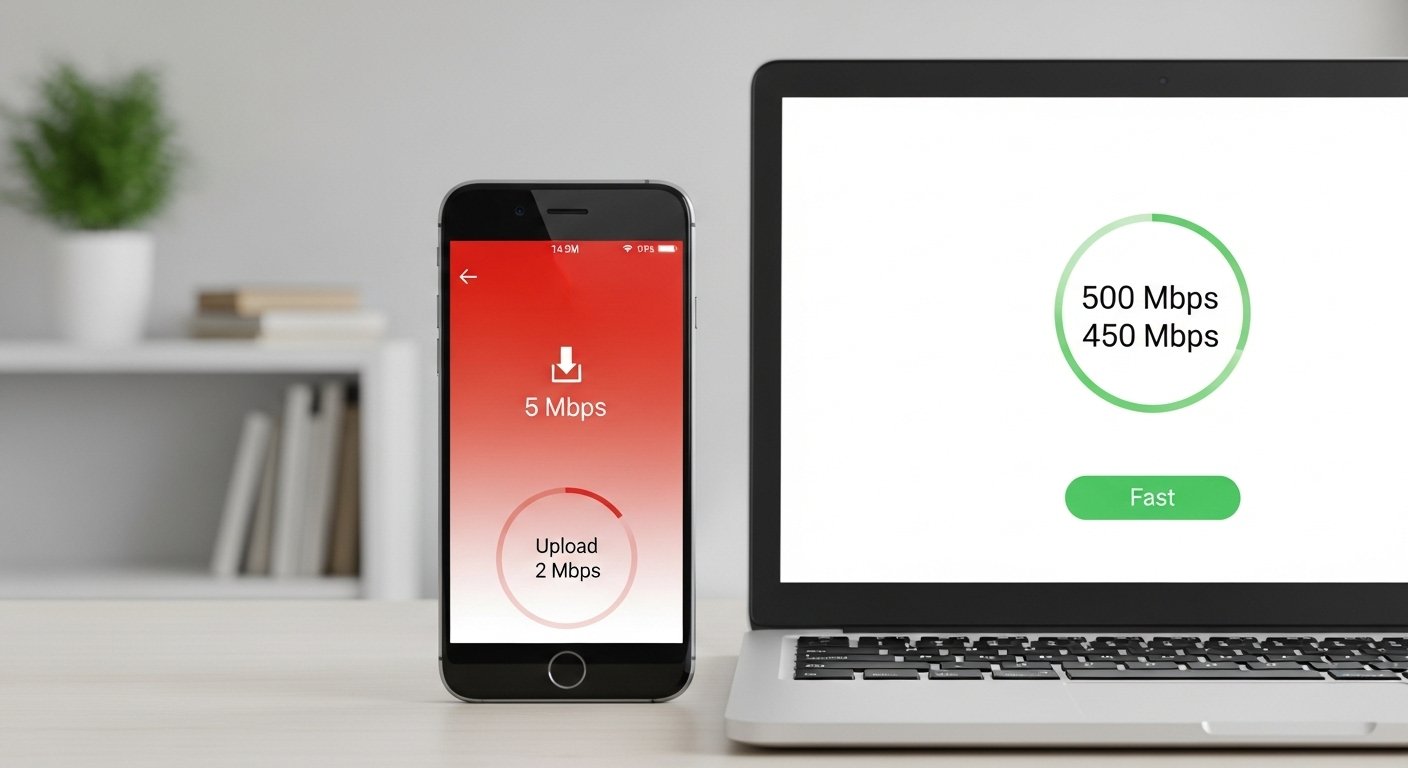
It is a common and frustrating scenario: you are sitting in your living room in the USA, trying to join a Zoom call or stream a movie, but your connection is crawling. You check your phone, and it works perfectly. You check your spouse’s tablet, and the speeds are lightning-fast. However, your primary laptop remains sluggish. When your WiFi is slow only on one device, it can feel like your hardware is failing or that your internet provider is letting you down.
Read more: WiFi Connected but No Internet on Laptop (10 Proven Fixes)
In most American households, we rely on a mesh of devices ranging from smart TVs to iPhones and Windows PCs. Dealing with an internet slow on only one device usually indicates a software glitch or a setting mismatch rather than a total network failure. Whether you are using Xfinity, Spectrum, or AT&T, this guide will help you identify the root cause and restore your speeds quickly. Reassuringly, this issue is almost always fixable without calling a technician.
Why Is WiFi Slow Only on One Device?
Understanding why is my WiFi slow on one device is the first step toward a solution. Unlike a total blackout, a single-device slowdown is localized. Here are the most common culprits:
1. Misconfigured Network Settings
Sometimes, a device saves an old configuration or an incorrect IP address. This “handshake” issue between your device and the router causes data to travel inefficiently, leading to lag.
2. Outdated Software or Drivers
On a Windows laptop or MacBook, the “driver” is the software that tells your hardware how to talk to the WiFi. If this driver is outdated, it may struggle to maintain a high-speed connection with modern routers.
3. Connection to the Wrong WiFi Band
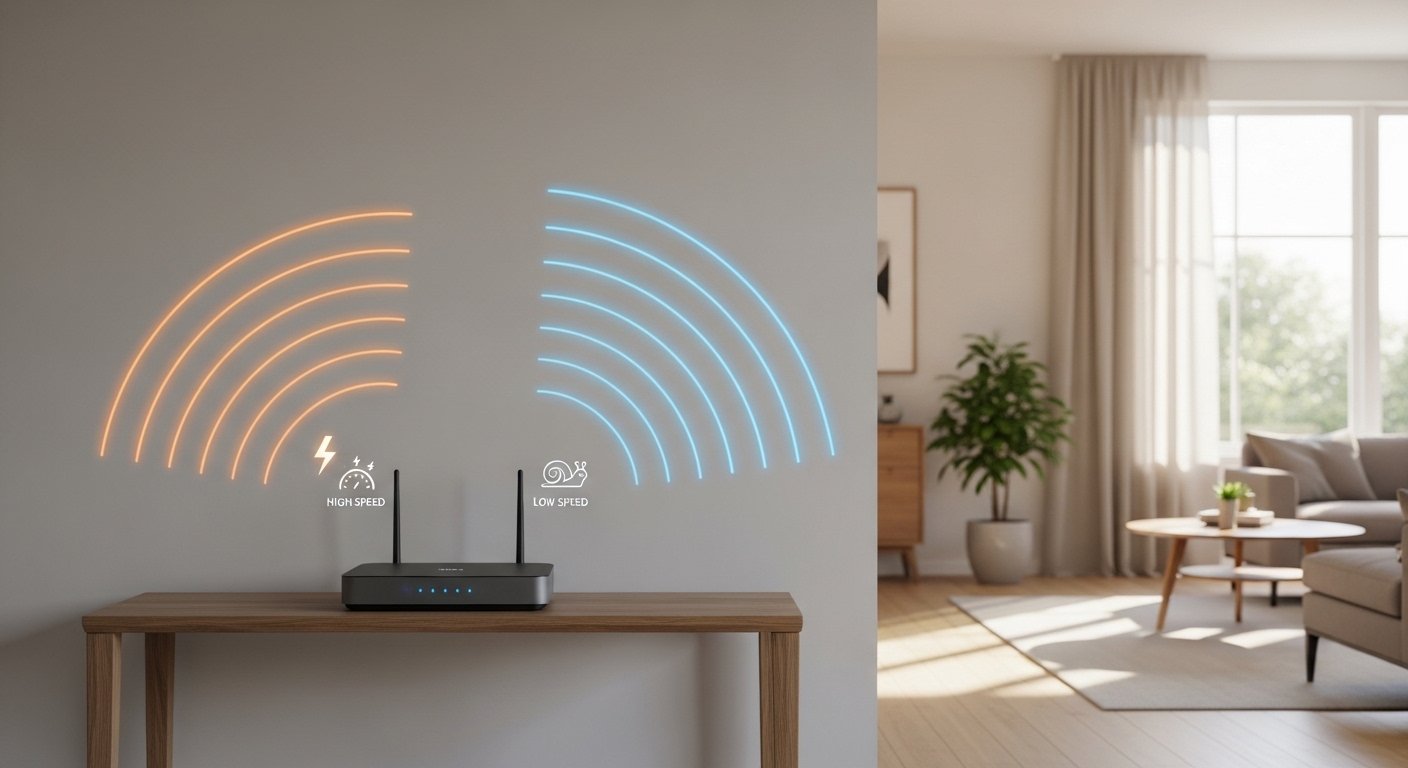
Most modern US routers use “Dual-Band” technology, offering both 2.4GHz and 5GHz frequencies. If one device is stuck on the 2.4GHz band while others are on 5GHz, that device will naturally be much slower.
4. Background Apps and Data Syncing
In many cases, the WiFi isn’t actually slow, but the device is “busy.” Cloud backups (like iCloud or OneDrive), Windows updates, or hidden background apps can hog all the bandwidth allocated to that specific device.
5. Hardware Limitations
Older devices may not support the latest WiFi standards (like WiFi 6). If you are using a 10-year-old laptop alongside a brand-new iPhone, the laptop will inherently feel slower because its internal antenna cannot process data as quickly.
6. VPNs and Security Software
If you use a VPN for work or privacy, it adds an extra “tunnel” for your data to travel through. This often slows down the connection on that specific device while leaving your other un-VPNed devices fast.
Quick Checks Before Fixing the Problem
Before diving into deep settings, perform these “low-effort” checks to save time:
-
Restart the Device: Turn it completely off and back on. This clears temporary memory bugs.
-
Toggle Airplane Mode: Switch Airplane Mode on for 10 seconds, then off. This forces the device to reconnect to the nearest signal.
-
Perform a Speed Test: Use a site like Speedtest.net on the “slow” device and a “fast” device. Compare the numbers to confirm the gap.
-
Move Closer to the Router: Ensure it isn’t just a physical barrier or a “dead zone” in that specific corner of the room.
How to Fix WiFi Slow Only on One Device (Step-by-Step)
If the quick checks didn’t work, follow these detailed steps to resolve the issue.
1. Forget and Reconnect to the Network
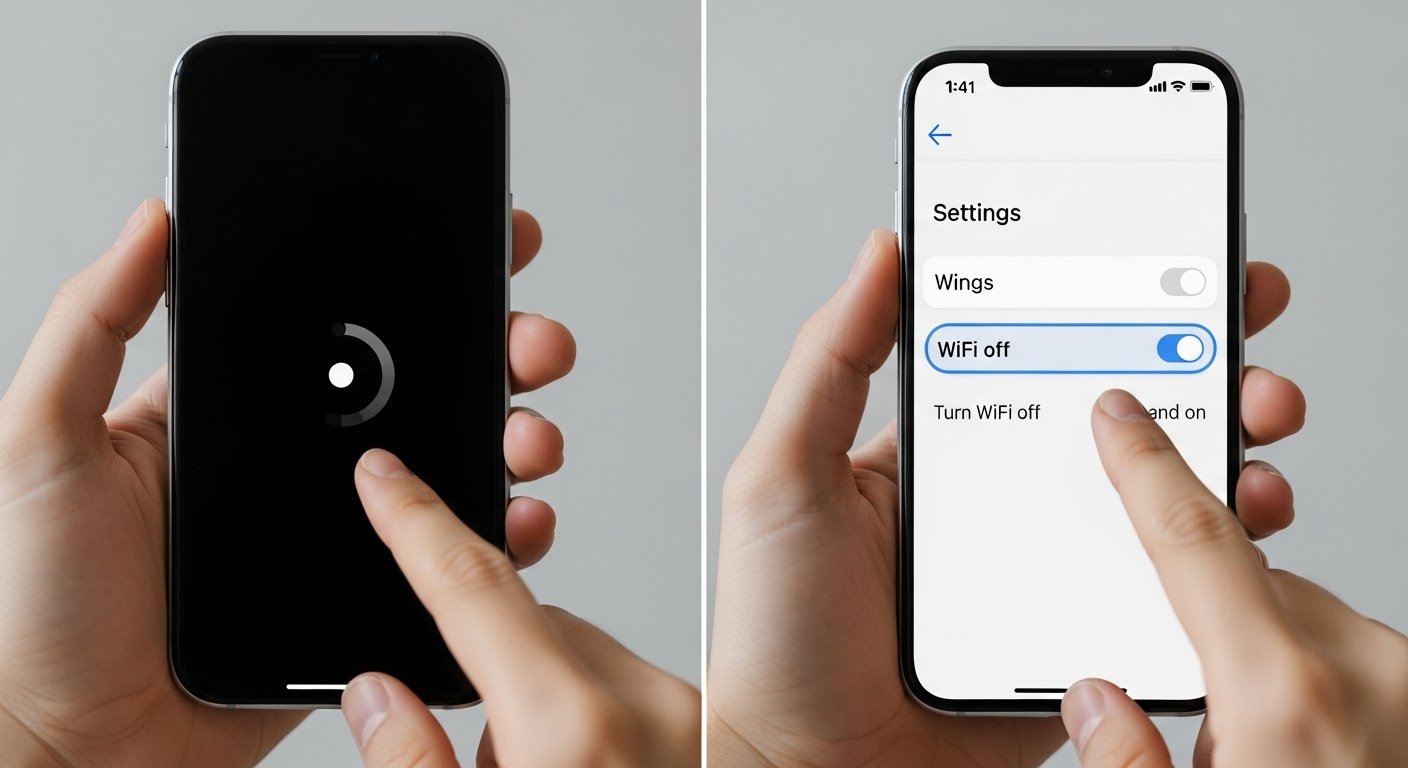
This forces the device to delete all stored credentials and handshakes, starting the connection from scratch.
-
iPhone/iPad: Go to Settings > WiFi, tap the “i” next to your network, and select Forget This Network. Reconnect with your password.
-
Android: Go to Settings > Network & Internet > WiFi, long-press your network name, and select Forget.
-
Windows: Click the WiFi icon in the taskbar, right-click your network, and select Forget.
-
MacBook: Go to System Settings > WiFi > Advanced, find your network, click the three dots, and select Remove From List.
2. Update Your Device Software
Manufacturers frequently release “patches” that fix WiFi bugs.
-
iPhone/Mac: Go to Settings > General > Software Update.
-
Windows: Type “Check for updates” in the Start menu search bar and run any pending updates.
-
Android: Go to Settings > System > System Update.
3. Update Network Drivers (Windows Laptop Only)
If your WiFi is slow on laptop only, the driver is usually the culprit.
-
Right-click the Start button and select Device Manager.
-
Expand the Network adapters section.
-
Right-click your WiFi card (usually says “Wireless” or “Intel”).
-
Select Update driver and choose Search automatically for drivers.
4. Check for Bandwidth-Hogging Background Tasks
-
Windows: Press Ctrl + Shift + Esc to open Task Manager. Look at the “Network” column to see if an app is using high Mbps.
-
Mac: Open Activity Monitor from Applications, go to the Network tab, and sort by “Rcvd Bytes.”
-
Mobile: Check if your Photo Gallery is currently “Syncing” or “Backing Up” to the cloud.
5. Disable the VPN or Proxy
A VPN encrypts your data, which takes time. If you notice WiFi slow on one device but others fast, and that device has a VPN active, turn it off. If speeds return to normal, you may need to change the “Server” or “Protocol” within your VPN app settings.
6. Change the WiFi Band (5GHz vs. 2.4GHz)
The 2.4GHz band travels through walls better but is slower. The 5GHz band is much faster but has a shorter range.
-
Ensure your slow device is connected to the 5GHz band if you are in the same room as the router.
-
If your router uses the same name for both, you may need to log into the router settings to separate them (e.g., “HomeWiFi_2.4” and “HomeWiFi_5”).
7. Disable “Limit IP Address Tracking” or “Private Address”
Apple devices have a security feature that rotates your MAC address. Occasionally, this confuses US routers (like those from Xfinity).
-
iPhone: Go to Settings > WiFi, tap the “i”, and toggle off Private WiFi Address. Reconnect and test your speed.
8. Reset Network Settings
Warning: This will delete all saved WiFi passwords and Bluetooth pairings.
-
iPhone: Settings > General > Transfer or Reset iPhone > Reset > Reset Network Settings.
-
Android: Settings > System > Reset options > Reset WiFi, mobile & Bluetooth.
-
Windows: Settings > Network & Internet > Advanced network settings > Network reset.
9. Check for Malware
Malware can use your device’s connection to send data to hackers, slowing your internet. Run a scan using a trusted tool like Malwarebytes (popular in the USA) to ensure your device is clean.
10. Adjust DNS Settings
DNS is like a phonebook for the internet. Sometimes the default one provided by your ISP (like Spectrum) is slow.
-
On your device, change your DNS to Google DNS (8.8.8.8 and 8.8.4.4) or Cloudflare (1.1.1.1). This often improves the “snappiness” of browsing.
WiFi Slow on Phone but Fast on Laptop – What to Do
When your WiFi slow on phone but fast on laptop, the issue is usually related to mobile power-saving modes or physical interference.
-
Power Saving Mode: Many Android and iPhones throttle the network chip when “Low Power Mode” is on. Disable this in your battery settings.
-
Phone Cases: Some thick, metallic, or magnetic phone cases can actually interfere with the internal WiFi antenna. Try removing the case.
-
Bluetooth Interference: Bluetooth and 2.4GHz WiFi use the same frequency. Try turning off Bluetooth on your phone to see if the WiFi speed jumps up.
WiFi Slow on Laptop Only – Common Reasons
If you find WiFi slow on laptop only, it is often a matter of how the laptop handles “Sleep” mode.
-
Power Management: Windows often “puts to sleep” the WiFi card to save battery. Go to Device Manager > Network Adapters > [Your WiFi Card] > Properties > Power Management. Uncheck “Allow the computer to turn off this device to save power.”
-
Browser Cache: If only your web browser feels slow, clear your cache and cookies. Sometimes a bloated browser makes the whole internet connection feel sluggish even when the hardware is fine.
When the Problem Is NOT Your WiFi Router
It is easy to blame the router, but if four other devices are streaming 4K video perfectly, the router is doing its job. The router acts like a radio station; if one radio is fuzzy but the others are clear, the problem is the radio, not the station.
If you have performed a Network Reset on your device and it is still slow, the problem might be a hardware failure of the device’s internal WiFi chip. In this case, a cheap “USB WiFi Adapter” can be plugged into a laptop to bypass the broken internal parts.
Advanced Tips for USA Home Internet Users
Most US residents get their internet through “Big Tech” ISPs like Verizon Fios, Xfinity (Comcast), Cox, or Spectrum. Here are some specific tips for these setups:
Router Placement in US Homes
American homes often have drywall and wood frames, which are okay for WiFi, but brick chimneys or large mirrors can kill signals. Ensure your router is central and not tucked inside a metal cabinet.
Use the Provider’s App
Xfinity and AT&T provide apps (like the Xfinity app or Smart Home Manager) that allow you to see exactly how much signal a specific device is getting. These apps can often “optimize” the channel for you automatically.
Upgrade Your Hardware
If you are paying for 1 Gigabit speeds from Google Fiber but using a router from 2018, you are wasting money. Ensure your “slow” device is WiFi 6 compatible if you have a high-speed US internet plan.
Frequently Asked Questions (FAQs)
Q: Why is my WiFi fast on everything except my PC? A: This is usually due to outdated network drivers, background Windows updates, or the PC being positioned in a way that blocks the signal. Try updating your drivers in the Device Manager.
Q: Can a virus make my WiFi slow on just one device? A: Yes. Malware can use your bandwidth to perform tasks in the background without your knowledge. Use a reputable antivirus to scan your device.
Q: Does my phone case affect WiFi speed? A: Yes, especially cases with metal components or heavy-duty “rugged” designs. These can shield the small internal antenna from the router’s signal.
Q: Why does my WiFi slow down when I use Bluetooth? A: Both Bluetooth and older WiFi (2.4GHz) operate on the same 2.4GHz frequency. They can “crowd” each other. Switching your device to the 5GHz WiFi band solves this.
Q: Should I buy a new router if one device is slow? A: Usually, no. If other devices are fast, the router is working. Focus on troubleshooting the specific device or buying a WiFi extender if that device is simply too far away.
Conclusion
Dealing with WiFi slow only on one device is a nuisance, but it rarely requires a professional repair. By methodically checking your settings, updating your drivers, and ensuring you are on the correct frequency band, you can usually solve the problem in under 20 minutes.
Start with the simplest fixes—restarting and forgetting the network—before moving on to network resets. Most of the time, your “slow” device just needs a fresh start to get back up to speed. If you have tried every step and the device is still lagging, consider a USB WiFi adapter for laptops or checking your device’s warranty for a hardware repair.