


Let’s be honest. Most lists of “best free AI video tools” are written by people who never actually used them.
Some were disappointing. Some were decent. And one? One genuinely stopped me mid-session and made me say “wait… this is real?”
Whether you’re a beginner just starting out, a YouTube creator tired of expensive software, or a freelancer looking for AI tools for content creators that don’t eat your budget — this guide is for you.
No fluff. No affiliate pressure. Just honest, hands-on results from testing the best free AI video generators available right now — including one that completely blew my mind.
Quick Summary: All 5 Tools at a Glance
| # | Tool Name | Free Plan | Best For | Rating |
| 1 | Kling AI 3.0 | Daily Credits ✓ | Cinematic realism | ★★★★★ 5/5 |
| 2 | InVideo AI | 2 min/week | YouTube & Scripts | ★★★★ 4/5 |
| 3 | Pika Labs | 150 credits/mo | Social media clips | ★★★★ 4/5 |
| 4 | Google Vids | Free (all users) ✓ | Presentations | ★★★½ 3.5/5 |
| 5 | Luma Dream Machine | 30 credits/mo | Creative / Artistic | ★★★★ 4/5 |
Tool Reviews: In-Depth, No Hype
Tool 1: Kling AI 3.0 — The One That Blew My Mind [⭐ WINNER]
Overview
Kling AI 3.0 is a text-to-video AI free platform from the Chinese tech company Kuaishou. In 2026, it is widely considered the most advanced free-tier video generator available. It uses a “Spatial-Temporal Attention” system to understand physics — things like gravity, fluid motion, and how light behaves on surfaces.
In plain terms: the videos look real. Genuinely, disturbingly real.
Key Features
- Text-to-video and image-to-video generation
- Physics-aware rendering — water, fire, cloth all move naturally
- Up to 10-second cinematic clips in 1080p
- Daily free credit refresh (no monthly reset)
- Camera motion controls: pan, zoom, dolly, orbit
- No watermark on standard free-tier outputs
Pros
- ✓ Best motion physics of any free tool tested
- ✓ Consistent character appearance across frames
- ✓ Daily credits refresh — more sustainable than monthly limits
- ✓ Clean, intuitive interface with minimal learning curve
- ✓ No watermark on free standard-resolution exports
Cons
- ✗ Free credits are limited per day
- ✗ Generation takes 2–4 minutes per clip
- ✗ Requires account creation and login
- ✗ Long-form or multi-scene videos not supported on free plan
Free Plan: Daily refreshing credits. Each clip costs 1–3 credits depending on length. No credit card required. Watermark-free at standard resolution.
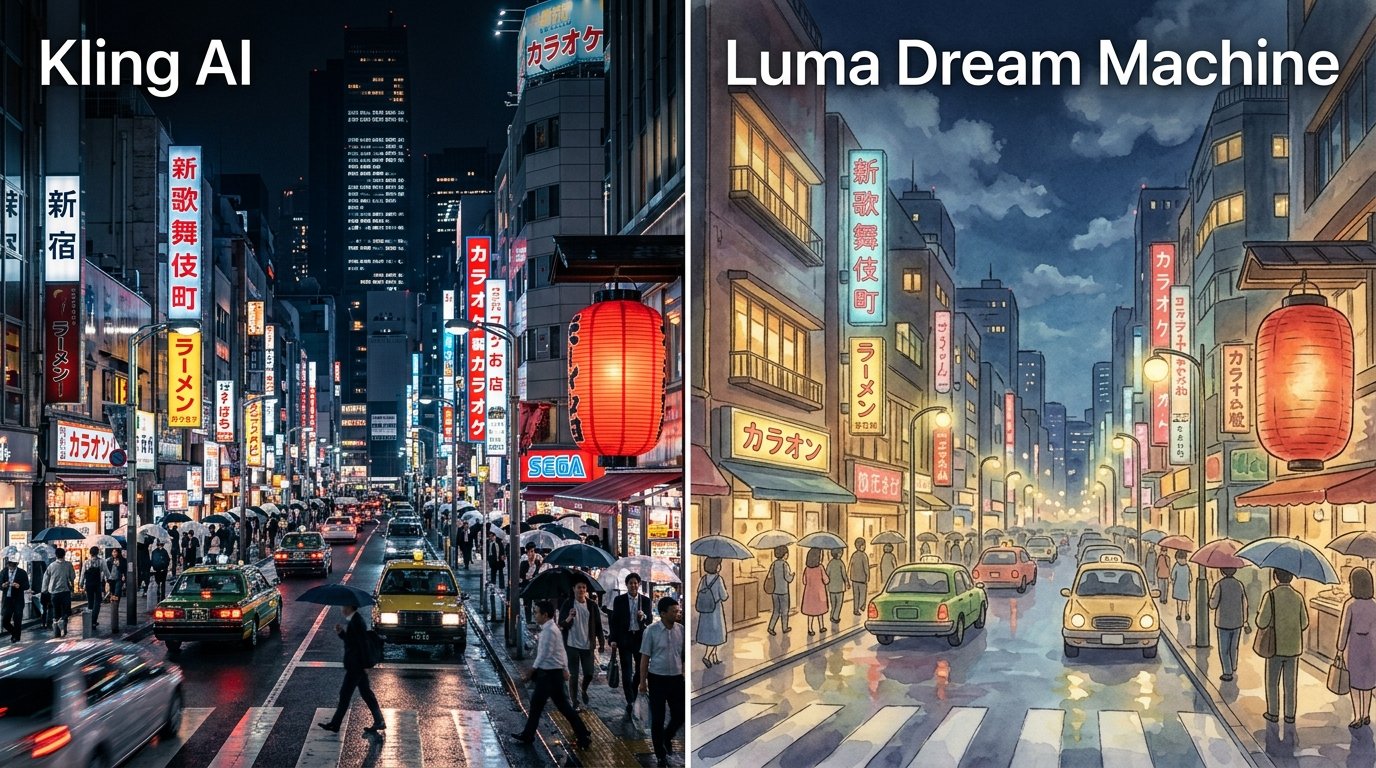
My Experience: I tested Kling with the same prompt I used across all five tools: “A woman in a red coat walking through a rainy Tokyo alley at night, cherry blossoms drifting past neon signs.” Kling’s result was the only one that made me physically lean toward my screen. The coat moved. Puddles reflected the light. Blossoms floated — not glitched. It felt like a real short film, not a tech demo. I have since rebuilt part of my YouTube thumbnail and B-roll workflow entirely around this tool.
Best Use Case: YouTube intros, cinematic B-roll, storytelling content, travel videos, music video backgrounds

Tool 2: InVideo AI — Best for YouTube Creators [Great for Scripts]
Overview
InVideo AI is one of the most established AI video tools for YouTube. You give it a topic or a script, and it builds a complete video — stock footage, voiceover, music, captions, and transitions — all automatically.
It is not a raw text-to-video generator. It is more like a full video production assistant. Perfect if you create talking-head style or narrated YouTube content.
Key Features
- Prompt-to-full-video in under 5 minutes
- 16M+ stock video and image library
- AI voiceover with human-like delivery
- Auto-captions and text overlays
- Now powered by Google’s Veo 3.1 model
- Edit via natural language: “remove scene 3” or “change voiceover to British”
Pros
- ✓ Full production-ready video in under 5 minutes
- ✓ Surprisingly natural-sounding AI voiceover
- ✓ Best tool for long-form YouTube videos
- ✓ Easy text-command editing — no timeline skills needed
- ✓ Great for beginners with no video editing experience
Cons
- ✗ Free plan is very limited — only 2 video minutes per week
- ✗ Watermark included on all free exports
- ✗ Stock footage library can feel generic
- ✗ Less creative control compared to Kling AI
Free Plan: 2 video minutes + 1 AI credit per week. Exports include a watermark. Good for testing the tool, but not enough for regular content creation. Paid plans from $35/month.
My Experience: I typed: “Create a 3-minute YouTube video about the best street food in Tokyo.” InVideo had a full script, 14 clips, voiceover, and music ready in 4 minutes. The result was watchable but felt a bit generic — like a corporate explainer. The AI voiceover was surprisingly natural though. If you create educational or listicle YouTube content, this tool saves hours of work every week.
Best Use Case: YouTube explainers, listicle videos, faceless YouTube channels, blog-to-video repurposing
Tool 3: Pika Labs — Quick, Fun, Great for Social Media [Social Clips]
Overview
Pika Labs is one of the most popular best AI video generator free tools for short-form social media content. It excels at quick, stylized clips — 3 to 5 seconds — that pop on TikTok, Instagram Reels, or YouTube Shorts.
Think of it as a creative playground. You will not get photorealistic output, but you will get visually interesting, eye-catching results fast.
Key Features
- Text-to-video and image-to-video generation
- Stylized, animated, and realistic generation modes
- Sound effects and camera motion controls
- Fast generation — clips ready in 30–60 seconds
- 150 free credits per month included
- Community gallery for creative inspiration
Pros
- ✓ Very fast generation — results in under a minute
- ✓ Fun and experimental creative vibe
- ✓ 150 free credits per month — generous allowance
- ✓ Perfect output format for Reels, Shorts, and TikTok
- ✓ Simple, beginner-friendly interface
Cons
- ✗ Clips are only 3–5 seconds long
- ✗ Less physically realistic than Kling AI
- ✗ Watermark included on the free tier
- ✗ Not suitable for long-form YouTube content
Free Plan: 150 credits per month. Most clips cost 5–10 credits. Watermark included. No credit card needed to create an account and start.
My Experience: Pika is just fun to use. I made a clip of a futuristic city floating above clouds in about 45 seconds. It was not photorealistic, but it was striking. For thumbnail-style motion loops or short Instagram content, this tool delivers quickly. I would not use it for YouTube B-roll, but for social teaser clips and short-form content it is one of the fastest options available.
Best Use Case: TikTok, Instagram Reels, YouTube Shorts, creative concept clips, motion loops
Tool 4: Google Vids — Free, Practical, But Limited Creatively [Presentations]
Overview
Google Vids is Google’s answer to AI video creation — and in April 2026, they made it completely free for all users. It integrates into Google Workspace and is designed to make video as simple as building a slide deck.
It includes AI avatars, auto-generated scripts, AI-composed music, and text-to-speech narration. Powerful tool — but it leans more “corporate presentation” than “YouTube creator.”
Key Features
- AI avatars that present your video content
- Custom AI-generated background music (copyright-safe)
- Automatic script generation from your topic
- Seamless Google Drive and Workspace integration
- 240+ language support via text-to-speech
- Completely free for all Google account users
Pros
- ✓ Completely free — no credit limits or paywalls
- ✓ AI-generated music is unique and copyright-compliant
- ✓ Professional finish for presentations and explainers
- ✓ Perfect integration with existing Google Drive workflow
- ✓ No watermark on exports
Cons
- ✗ Output feels corporate rather than creative
- ✗ Not useful for cinematic or storytelling content
- ✗ Limited visual style and aesthetic options
- ✗ Avatars can appear stiff or unnatural
Free Plan: Completely free for all Google account users. No credit limits, no watermark. Access via Google Workspace or your standard Google account — no sign-up required beyond Google.
My Experience: I used Google Vids to create a 3-minute explainer about AI trends in 2026. It took about 20 minutes total and the output was polished and professional. I would not upload it to YouTube as a personality-driven video, but for creating training content, business presentations, or client-facing explainers, this is genuinely excellent — and the fact that it is completely free makes it hard to overlook.
Best Use Case: Business presentations, training videos, client explainers, educational content, corporate communication
Tool 5: Luma Dream Machine — Cinematic, Artistic, Dreamy [Creative Art]
Overview
Luma Dream Machine is a text to video AI free tool that leans into cinematic and artistic aesthetics. It generates smooth, dream-like clips that feel more “film school project” than “corporate explainer.”
The output has a distinctive painterly quality that works beautifully for creative content, music videos, and atmospheric storytelling — even on the free plan.
Key Features
- Text-to-video and image-to-video generation
- Cinematic camera moves: dolly, orbit, push-in
- Smooth, stylized motion quality throughout
- 30 free generations per month
- Active community sharing and showcasing creations
- Commercial use allowed on paid plans
Pros
- ✓ Beautiful and distinctive visual style
- ✓ Smooth and fluid motion quality
- ✓ Ideal for music video backgrounds
- ✓ Inspiring community gallery for creative prompts
- ✓ Simple, clean prompt interface
Cons
- ✗ Only 30 free credits per month — fills up quickly
- ✗ Less physically realistic than Kling AI
- ✗ Dreamlike style is not always practical or versatile
- ✗ No free commercial use rights
Free Plan: 30 generations per month at standard quality. Watermark included on free tier. Paid plans from approximately $30/month with commercial rights unlocked.
My Experience: Luma produced the most beautiful video of the bunch — but not always the most useful. When I prompted “woman walking through rain-soaked Tokyo alley,” Luma gave me something that looked like a Studio Ghibli film come to life. Gorgeous. But the physics were slightly off — she floated a touch. For music channels, creative content, or cinematic YouTube openers, it is unlike anything else I tested.
Best Use Case: Music video backgrounds, creative intros, artistic content, atmospheric storytelling, ambient loops
Which Tool Wins for Your Use Case?
Every creator has different needs. Here is a quick breakdown of which tool to pick based on your goals.
Beginners: InVideo AI — Easiest setup. Type a topic and get a full video in minutes. No learning curve needed.
YouTube Creators: Kling AI 3.0 — Best-in-class visual quality. Daily credits and no watermark make it sustainable for regular uploads.
Social Media (TikTok/Reels): Pika Labs — Fast, fun, built for short clips. Perfect for Reels, TikTok, and YouTube Shorts.
Business / Corporate: Google Vids — Completely free, no watermark, and integrates seamlessly with your existing Google workflow.
Music / Art Creators: Luma Dream Machine — Most cinematic and stylized output. Ideal for creative and artistic projects.
The Winner: The Tool That Blew My Mind
Nothing else came close. Kling AI 3.0 is the only free AI video tool in 2026 that produces genuinely cinematic, physically accurate output — with daily refreshing credits and no watermark on free exports.
The motion physics are on another level compared to every other free tool I tested. The footage holds up next to professionally shot content. Characters move realistically. Light behaves correctly. Cloth flows with actual weight.
And it keeps getting better. Kuaishou has been releasing rapid updates throughout 2026, and the free tier has remained generous even as the quality climbs.
For any creator who wants to elevate their video quality without spending money, Kling AI 3.0 is the clear answer. It is not just the best free AI video tool right now — it is better than many paid tools I have used in the past.
How to Choose the Right Free AI Video Tool
With so many options available, it is easy to get overwhelmed. Use these practical tips to find your match.
- Define your output first. Are you making YouTube videos, TikTok clips, business presentations, or creative art? Different tools are built for different outputs. Do not use a cinematic generator for a corporate explainer.
- Check the watermark policy. Many free tools add a watermark. If you publish content professionally, look for AI video maker without watermark options — Kling AI currently offers this at standard resolution on the free plan.
- Think about credit limits. Monthly limits reset once. Daily limits reset every day. For regular creators, tools with daily credits like Kling give you far more consistent, sustainable access to generation.
- Test with your own prompt. Do not rely on demo videos. Every tool looks amazing in its own showcase. Enter your actual use case as a prompt and judge the real output before committing to any workflow.
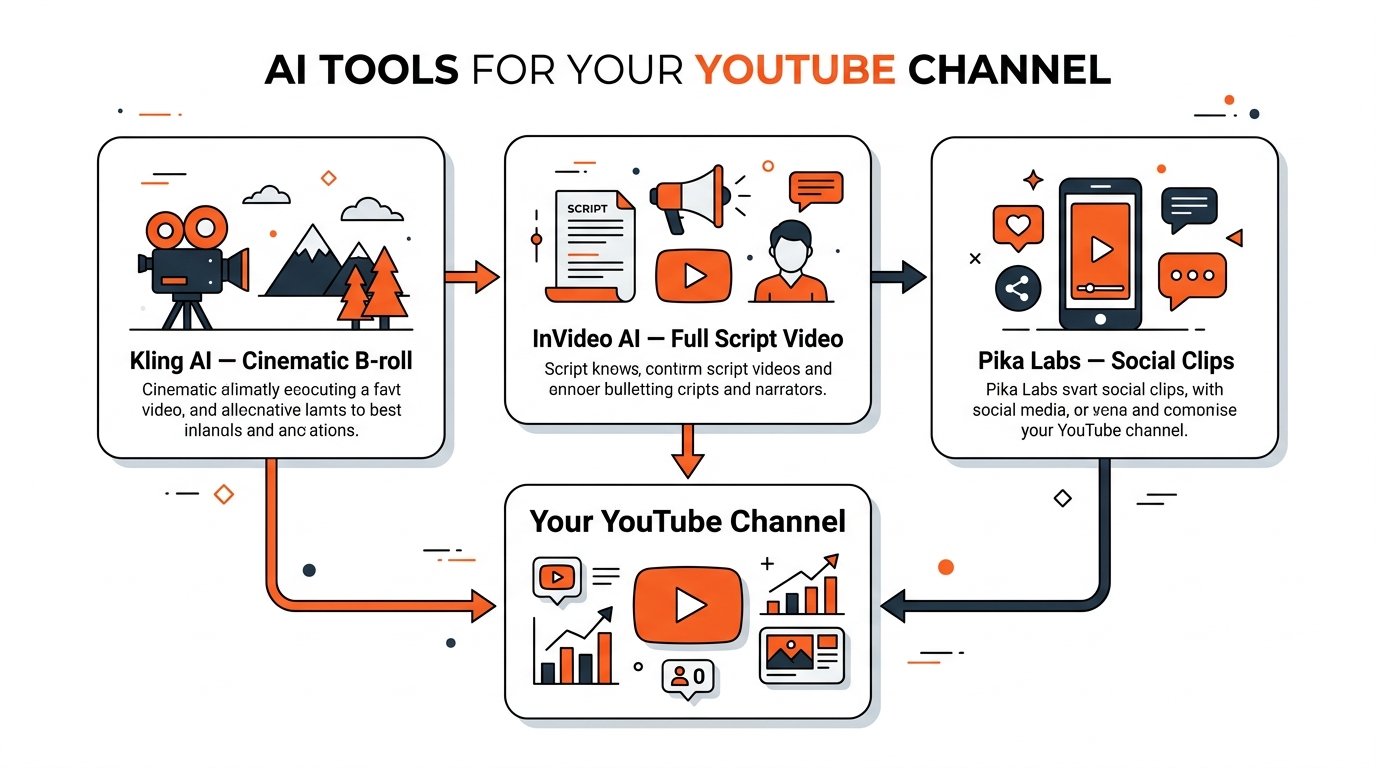
- Use a multi-tool approach. The best creators in 2026 are not using just one tool. Generate raw footage in Kling, repurpose clips with Pika, build long-form content in InVideo. Stack your free tools together for a zero-cost pipeline.
- Consider your existing workflow. If you live in Google Workspace, Google Vids integrates seamlessly. If you are in Adobe products, look at Adobe Firefly’s free tier. The best tool is the one that fits where you already work.
Frequently Asked Questions
Q: What is the best free AI video generator in 2026?
Kling AI 3.0 is currently the best free AI video generator in 2026 for most creators. It offers daily refreshing credits, cinematic motion physics, and watermark-free standard exports. For YouTube scripted content, InVideo AI is the better choice. For social media clips, Pika Labs is the fastest option available.
Q: Is there a free AI video tool with no watermark?
Yes. Kling AI 3.0 currently offers watermark-free exports on its free standard-resolution tier, making it one of the rare free AI video makers without a watermark. Google Vids also exports without watermark. Most other free tools — including InVideo, Pika, and Luma — include watermarks on their free plans.
Q: Can I use free AI video tools for YouTube monetization?
It depends on the tool. Most free tiers restrict commercial use. Kling AI and Pika Labs allow commercial rights only on paid plans. Google Vids gives free access with no such restriction for standard use. Always check the terms of service before monetizing AI-generated content on YouTube.
Q: Which free AI video tool is best for beginners?
InVideo AI is the most beginner-friendly free AI video tool. You simply type a topic or paste a script, and the tool handles everything — stock footage, voiceover, music, and captions. For true text-to-video beginners who want short clips, Pika Labs is also very intuitive and fast to get started with.
Q: How do I make AI videos for YouTube for free in 2026?
The easiest workflow in 2026: use InVideo AI to generate a full video from your script for free, then use Kling AI’s free daily credits to generate custom B-roll footage, and assemble everything in CapCut (also free). This multi-tool stack gives you professional results at zero cost — exactly the approach most successful faceless YouTube channels use today.
Q: Are AI-generated videos allowed on YouTube in 2026?
Yes, AI-generated videos are allowed on YouTube in 2026. However, YouTube’s policy requires creators to disclose when content is “realistic” AI-generated footage — especially if it depicts real people or events. You can set this in YouTube Studio under “Altered or synthetic content.” Non-realistic AI content does not require disclosure.
Q: What is the difference between text-to-video AI and AI video editors?
Text-to-video AI tools (like Kling, Pika, Luma) generate entirely new video footage from a text prompt — no existing footage needed. AI video editors (like CapCut AI, OpusClip) take existing footage and use AI to cut, caption, reframe, or repurpose it. For creating original content from scratch, use text-to-video tools. For improving footage you already have, use AI video editors.
Conclusion: Start Creating Today
Free AI video tools in 2026 are not a gimmick anymore. They are a genuine, powerful part of a modern creator’s toolkit.
If you only try one tool from this list, make it Kling AI 3.0. The free daily credits, zero watermark, and jaw-dropping output quality make it the best free AI video tool available right now — by a significant margin.
Start with Kling for your hero footage. Use InVideo for full-length scripted videos. Grab Pika for quick social clips. Stack them together and you have a zero-cost video production pipeline that would have cost thousands of dollars per month just two years ago.
The barrier to great video content is no longer money. It is just whether you are willing to start.
Primary keyword: free AI video tools 2026 | Secondary: best AI video generator free, AI video tools for YouTube, text to video AI free, AI video maker without watermark, AI tools for content creators